

How to Add a Sponsor Logo

How to Add a Sponsor Logo
Learn how to configure and add a custom Sponsor Logo to your mobile app using the Nuclavis admin portal. This guide walks you through setting up a Sponsor Logo.
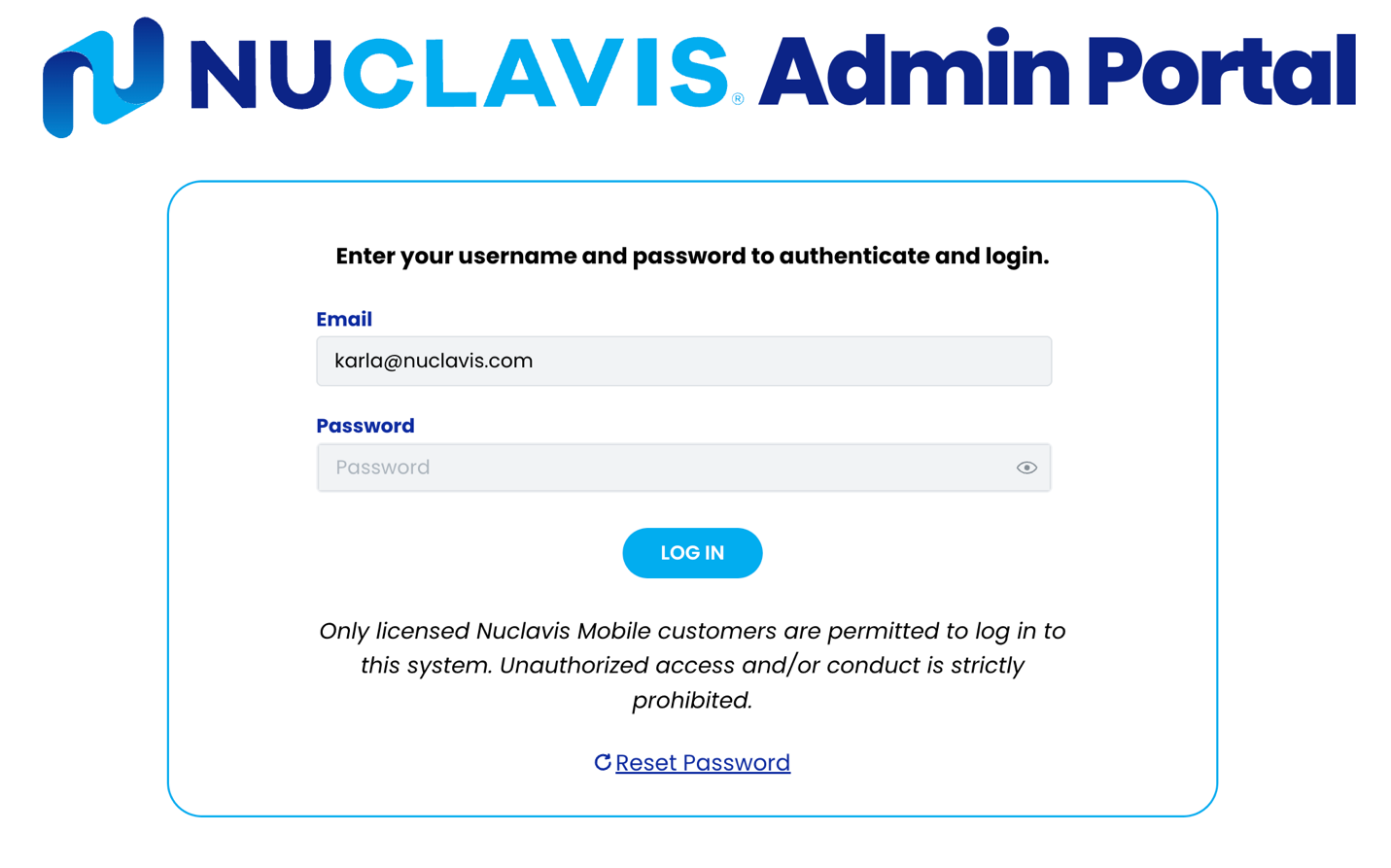
- Accessing the Admin Portal.
- Navigate to https://admin.nuclavis.com/login
- Sign in using your email address and Password.
- Click login
- Enter your Authentication Code
This code goes to your email (check spam or junk)
- Accessing Sponsors
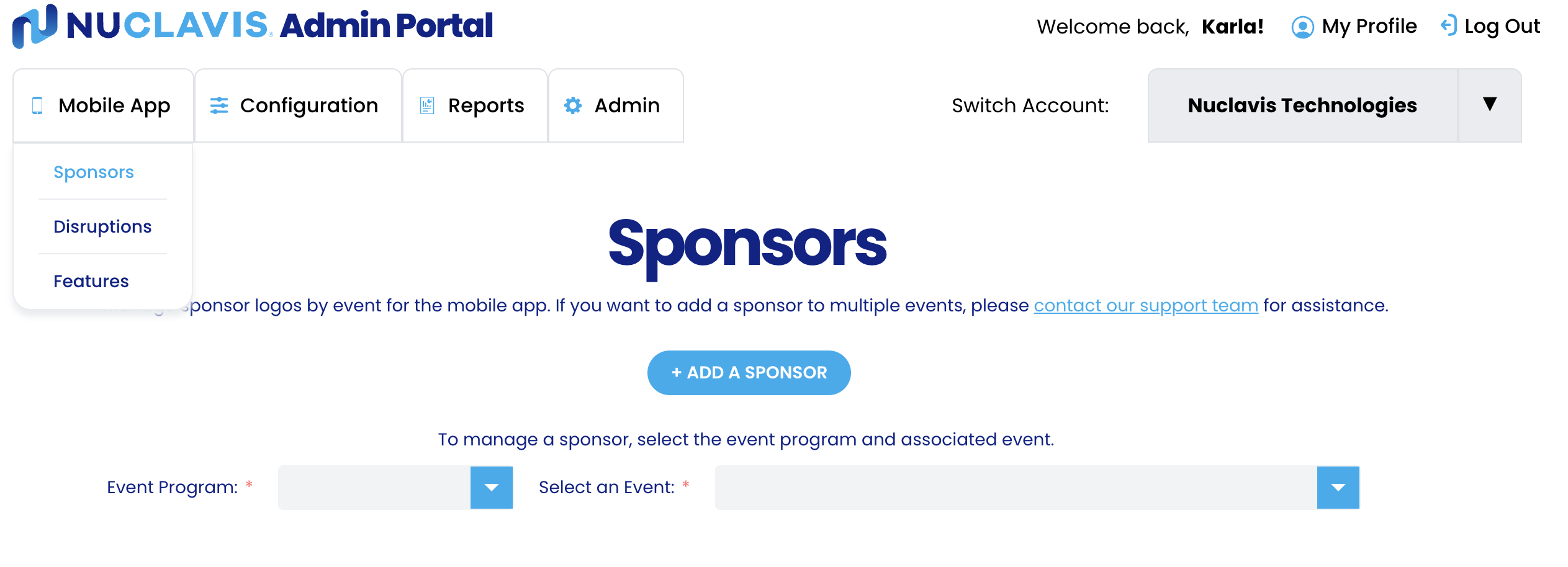
- Click on Mobile App
- Click on Sponsor
- Click Add Sponsor
- Entering Sponsor Information
In this section, you will fill out all the required fields for Sponsors.
-
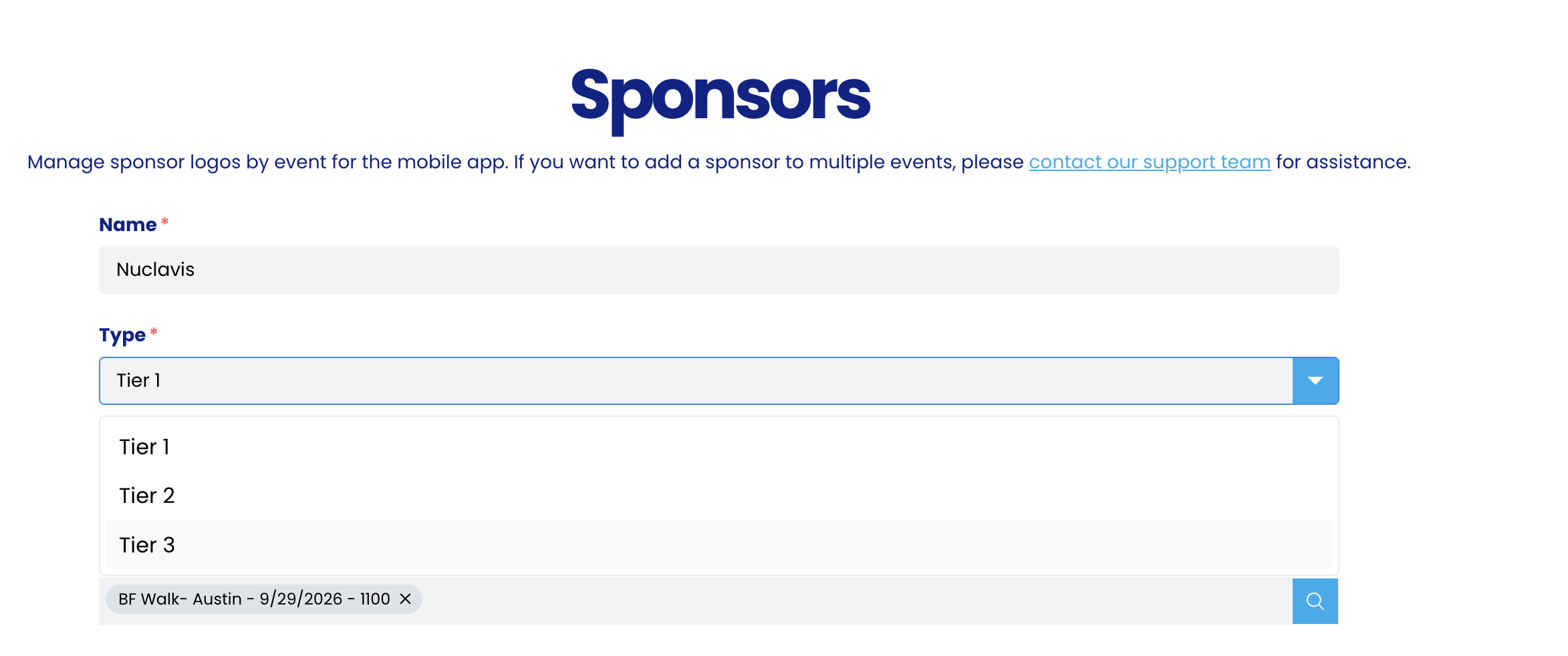
- For the Name
This name is only on the mobile app.
-
- For the Type
This field controls the hierarchy in which the logos should appear.
in the mobile app; For example, Double Your Impact!
-
-
- Tier 1 means it is the highest level
- Tier 2 means it is a middle level
- Tier 3 means it is the lowest level
-
-
- For the Event Program
This field is where you select the event program where the sponsor logo should appear.
-
- For the Event List
This field is where you select the event list where the sponsor logo should appear

-
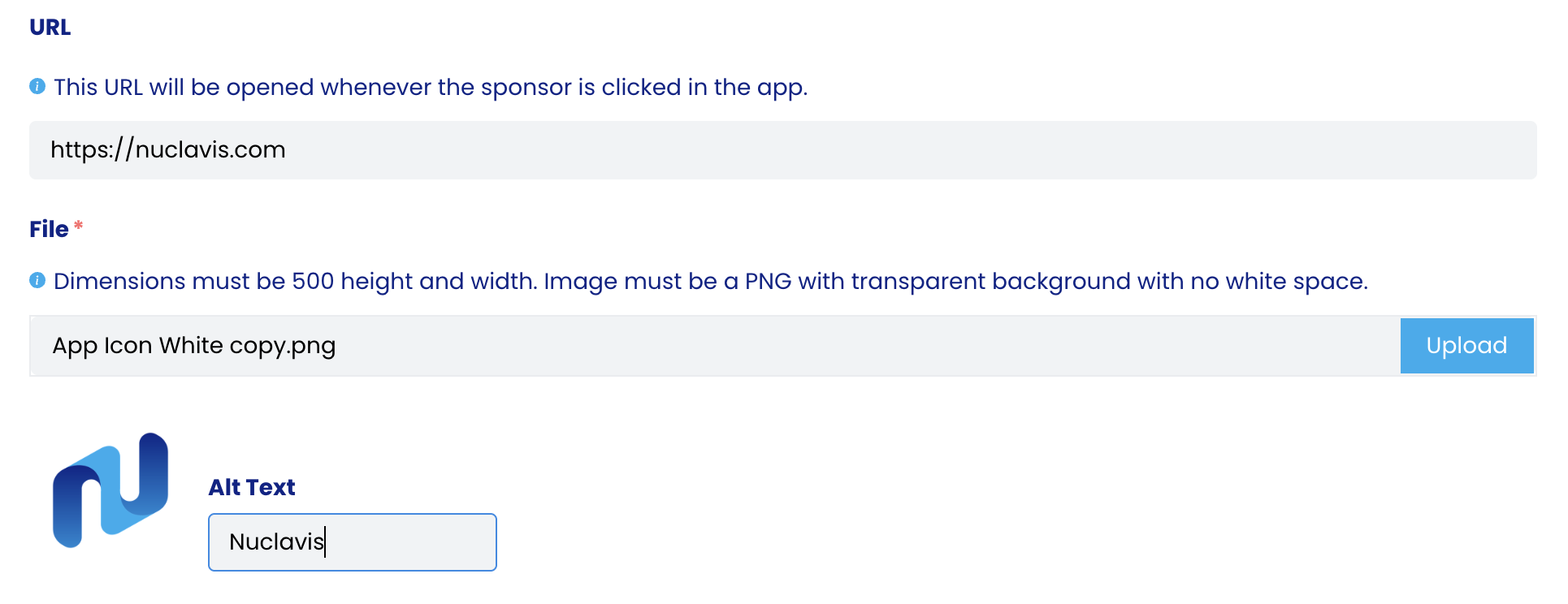
- For the URL
This field is where you enter the URL for the Sponsor Logo.
Note: The URL should start with https://
-
- For the File
- Click the upload button to open your files.
- Select the logo you would like to upload.
- For the File
Note: Dimensions must be 500 x 500.
Image must be a PNG with transparent background with no white space.
-
- Alt Text is required to describe the logo.
- Click Save.

