How to Run Reports for Mobile
Last updated: Oct 05, 2026
36
views


How to Run Reports for Mobile
Learn how to run reports for your mobile app through the Admin Portal.
- Accessing the Admin Portal.
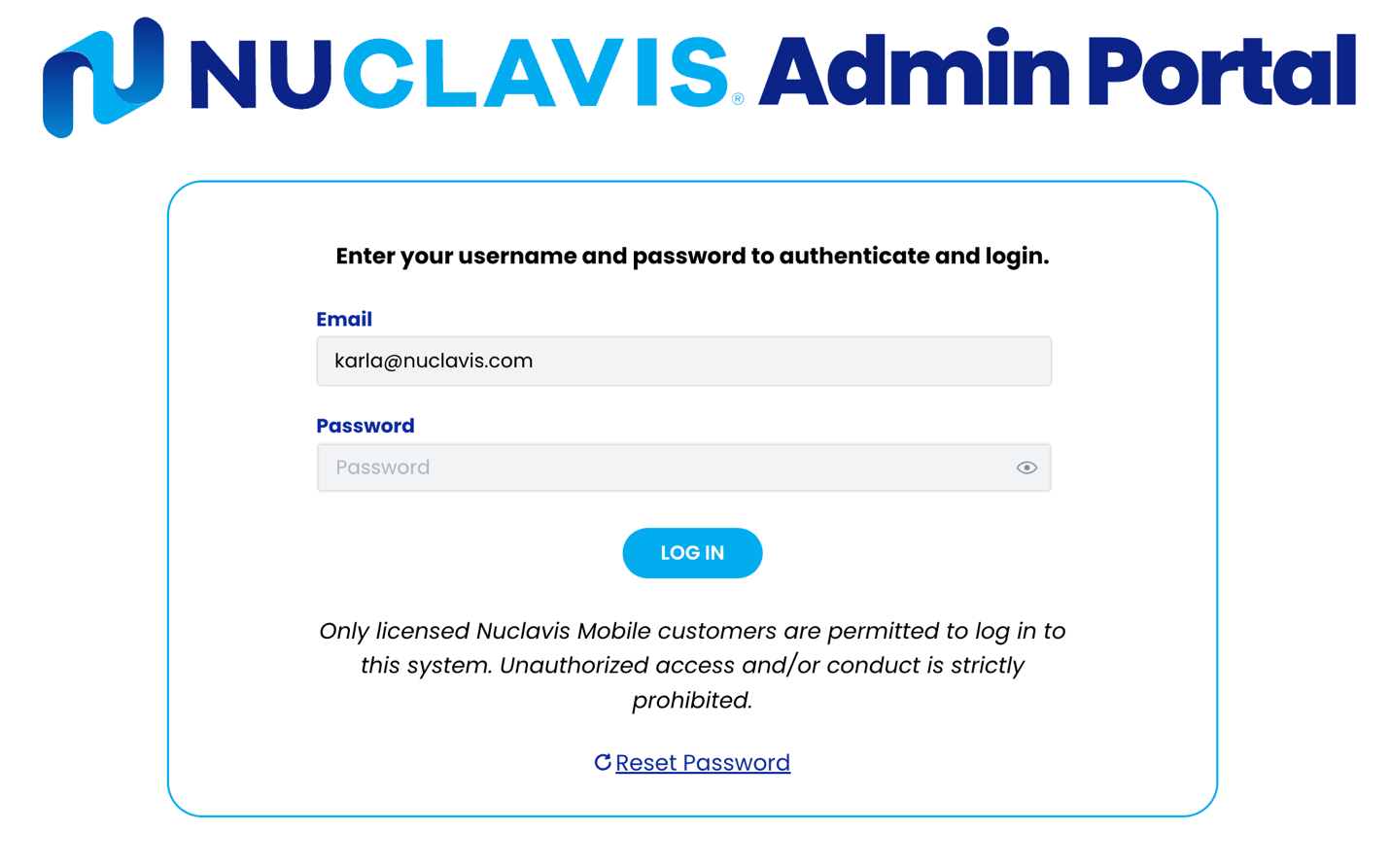
- Navigate to https://admin.nuclavis.com/login
- Sign in using your email address and Password.
- Click login
- Enter your Authentication Code
This code goes to your email (check spam or junk)
- Accessing Reports
- Click on Reports
- Click on Mobile App

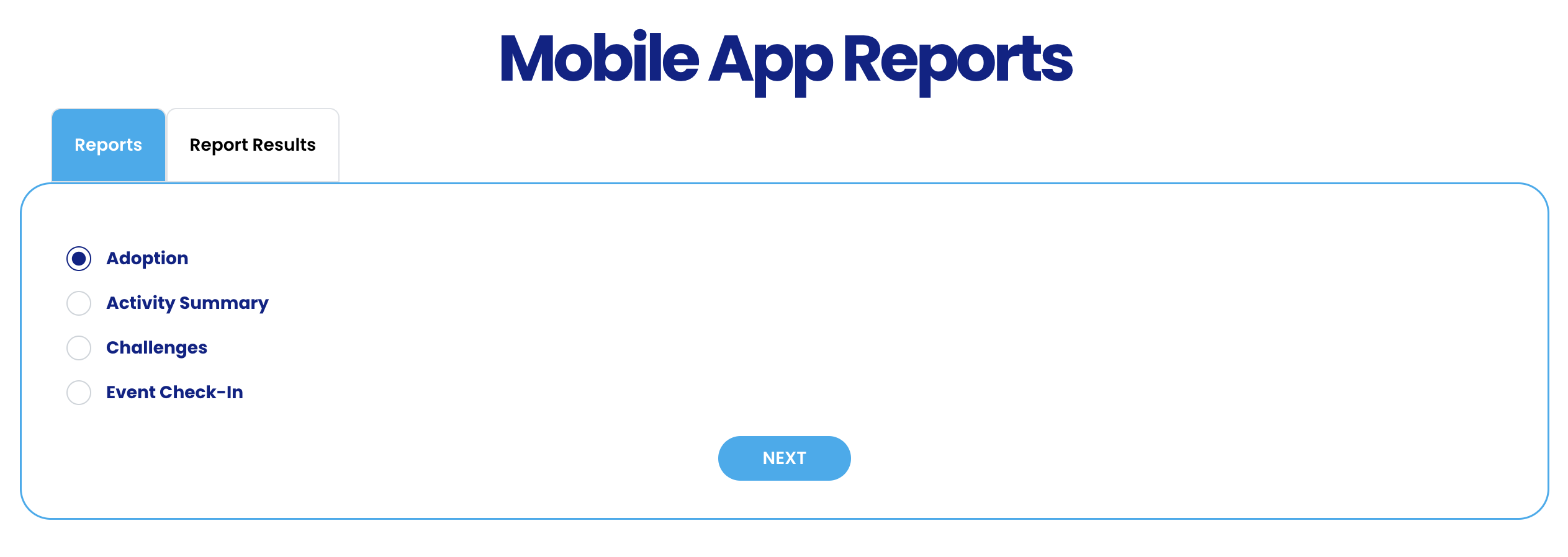
- Report Types
In this section, you will locate multiple reports. The reports will include participant constituent ID, first name, last name, event program, and event ID information.
-
- Adoption: This report provides information on users who have used the mobile app.
- Activity Summary: This report provides information on users who have connected or entered activity.
- Challenges: This report provides information for Challenges that have been set up.
- Event Check In: This report provides information for users who have or haven’t used event check-in.
- Running Reports
In this section, we will walk you through how to run each report listed above.
-
- Adoption
- Click on the radio button next to Adoption
- Click Next
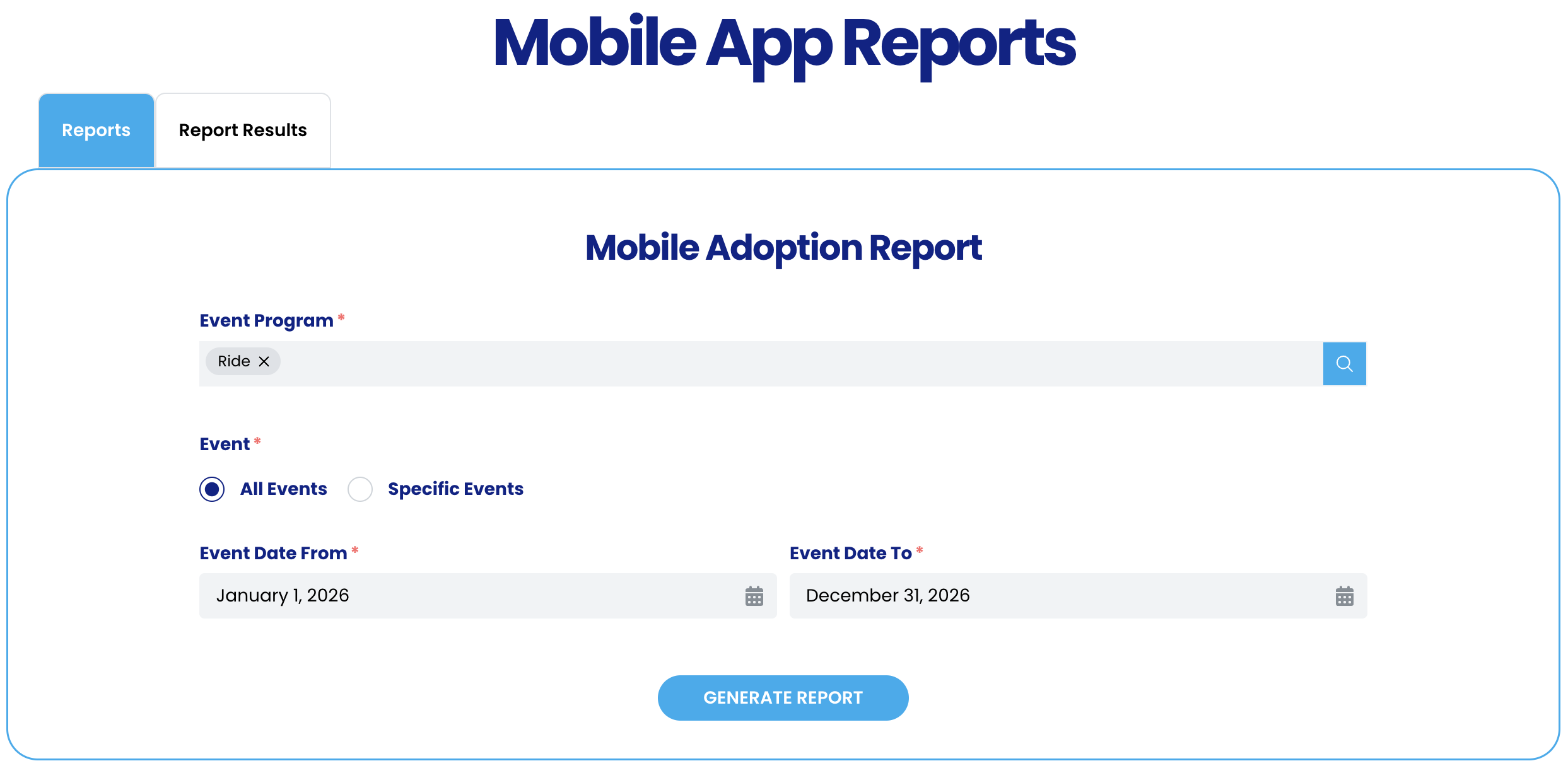
- Fill out all the required fields
- Event Program: The program you want to run the report for.
- Event: You can select all events or specific events
- If you choose specific events, you can select multiple events.
- Event Date From: Enter the dates the event(s) will fall within the range.
- Note: If you don’t see the event, expand the date range.
- Click Generate Report
- Adoption
-
-
-
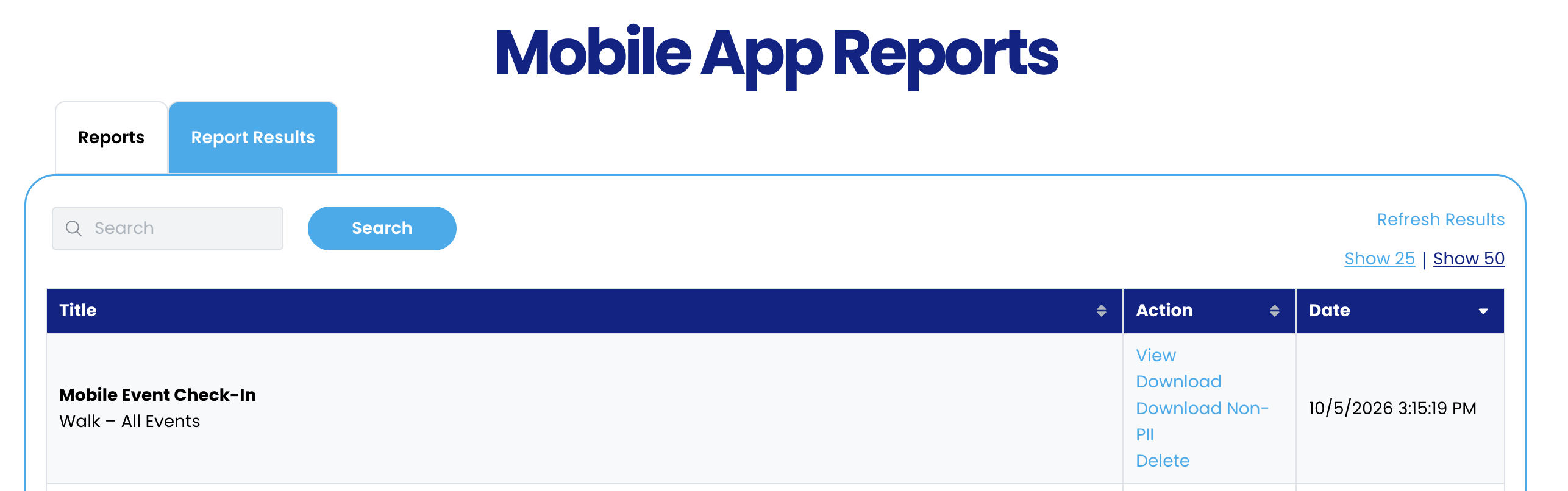
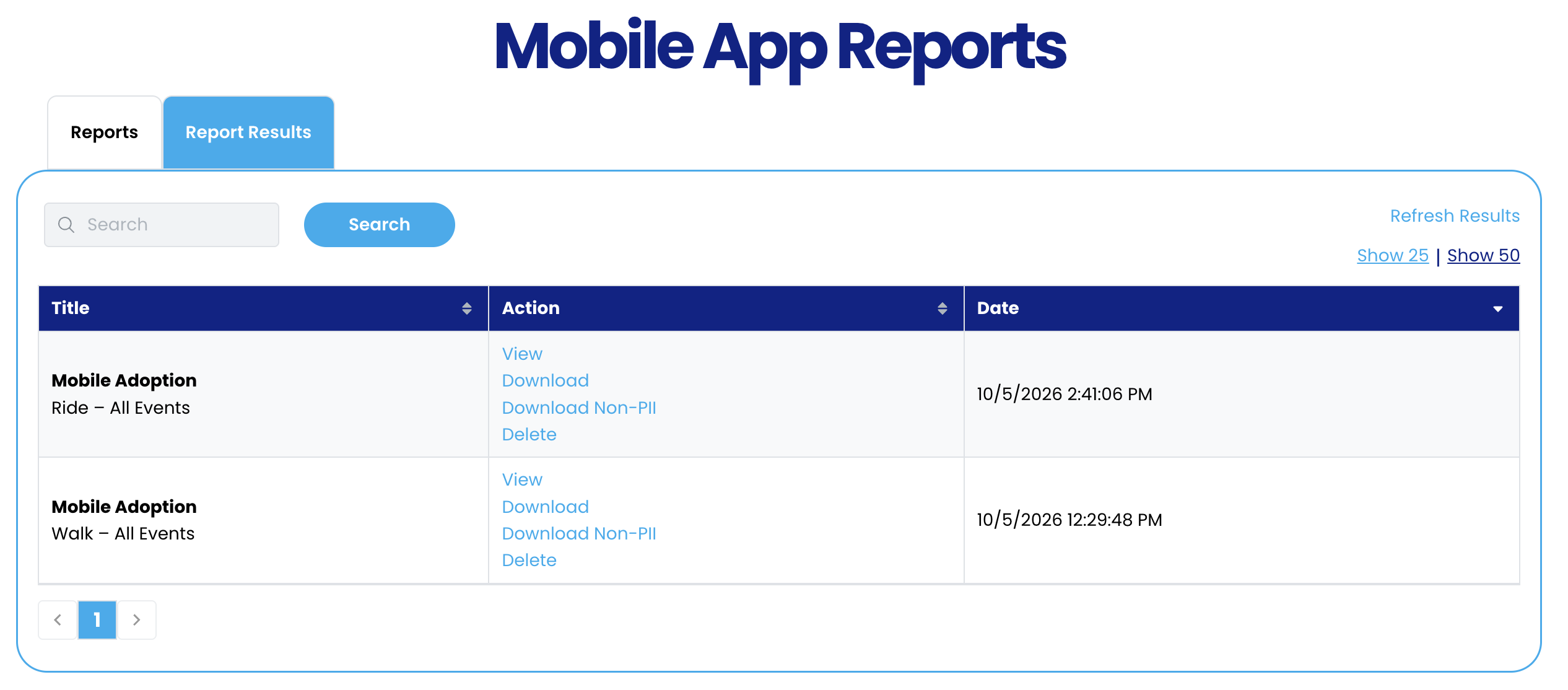
- Click on the Report Results tab
- You will be able to View the report
- Download the report (this report will include personally identifiable information)
- Download non-PLL (this report will not include personally identifiable information)
- Delete: You will be able to delete the report you ran.
-
-
-
- Activity Summary
- Click on the radio button next to Activity Summary
- Click Next
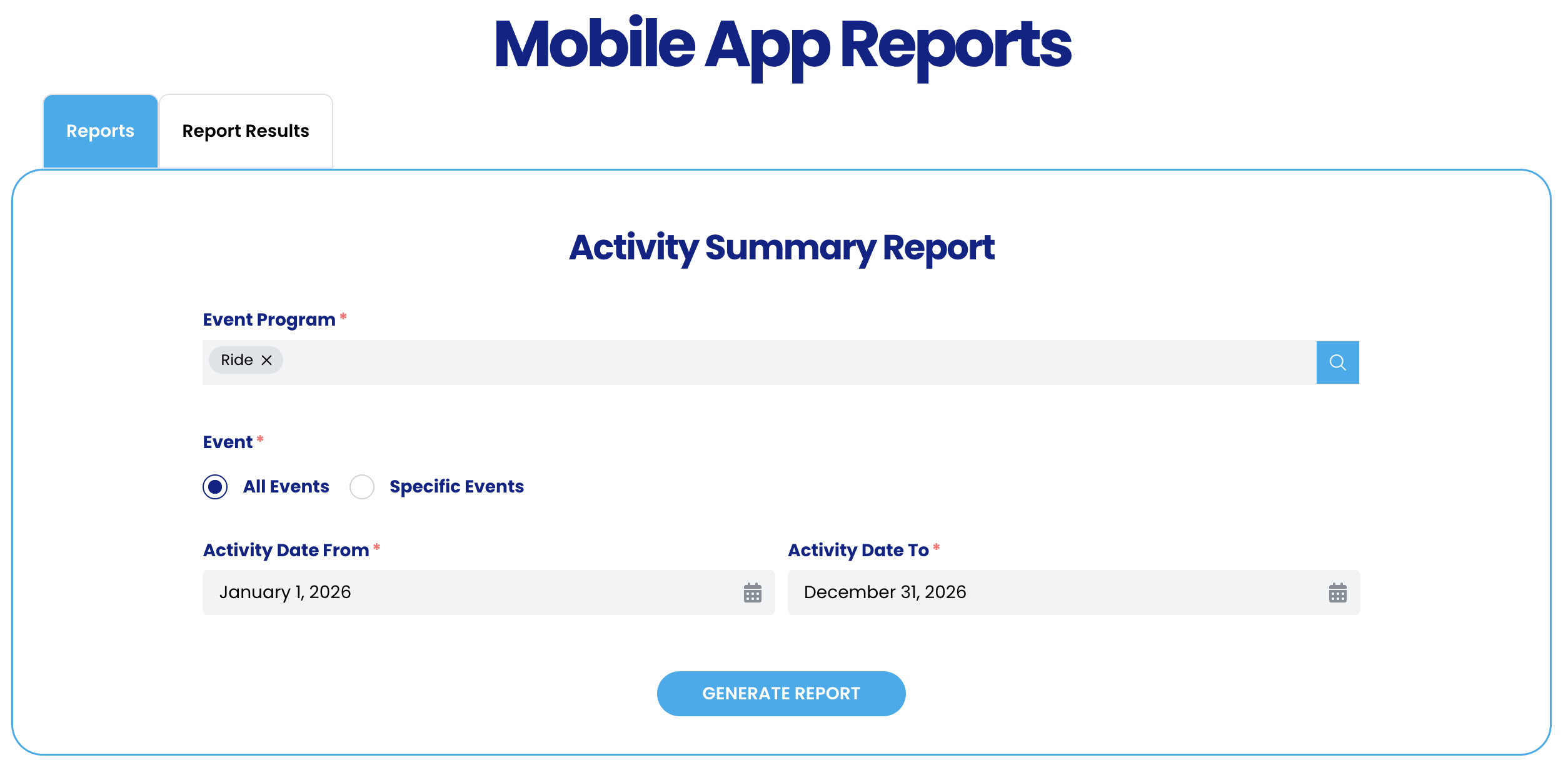
- Fill out all the required fields
- Event Program: The program you want to run the report for.
- Event: You can select all events or specific events
- If you choose specific events, you can select multiple events.
- Event Date From: Enter the dates the event(s) will fall within the range.
- Note: If you don’t see the event, expand the date range.
- Click Generate Report
- Activity Summary
-
-
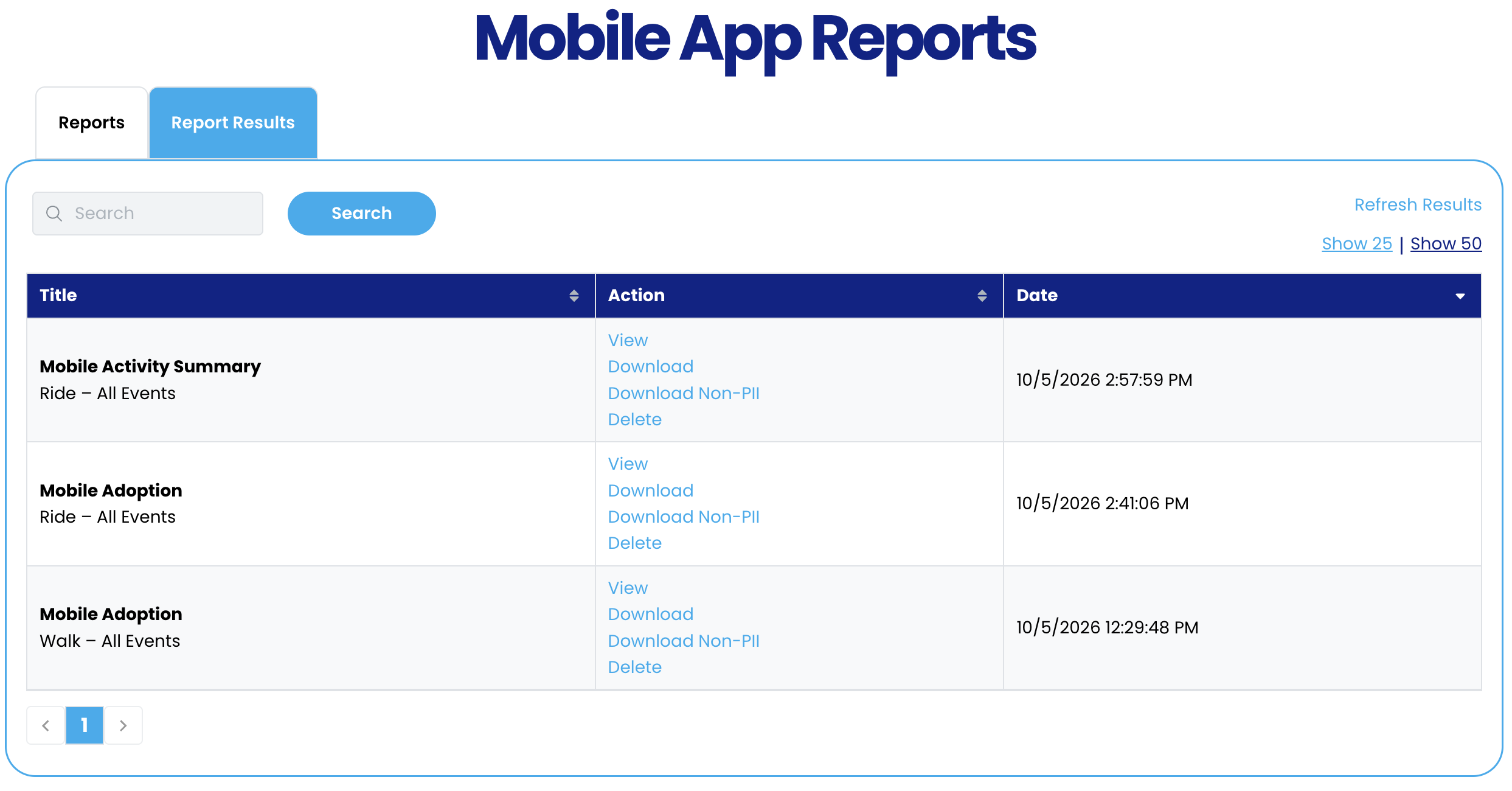
- Click on the Report Results tab
- You will be able to View the report
- Download the report (this report will include personally identifiable information)
- Download non-PLL (this report will not include personally identifiable information)
- Delete: You will be able to delete the report you ran.
- Click on the Report Results tab
-
-
- Challenges
- Click on the radio button next to Challenges
- Click Next
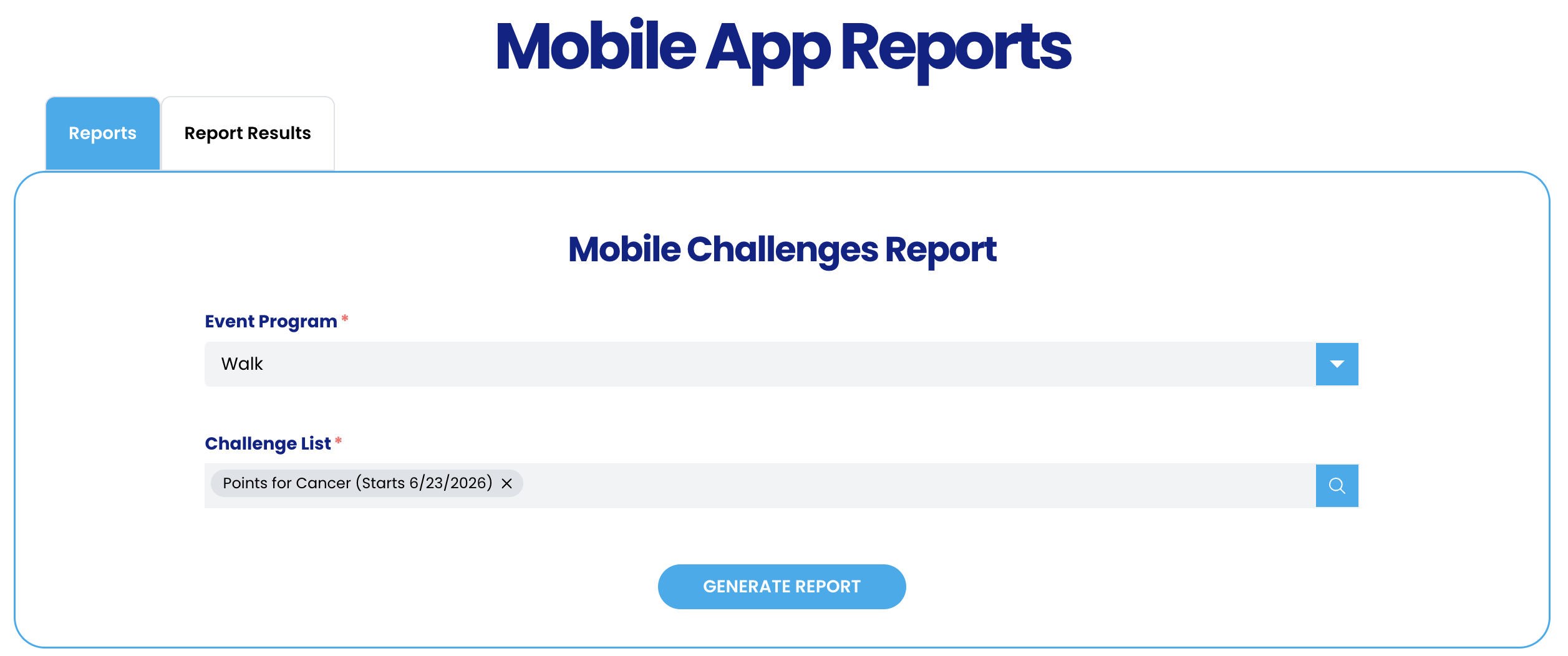
- Fill out all the required fields
- Event Program: The program you want to run the report for.
- Challenge List: Select the challenge name you want to run the report for.
- Click Generate Report
- Challenges
-
-
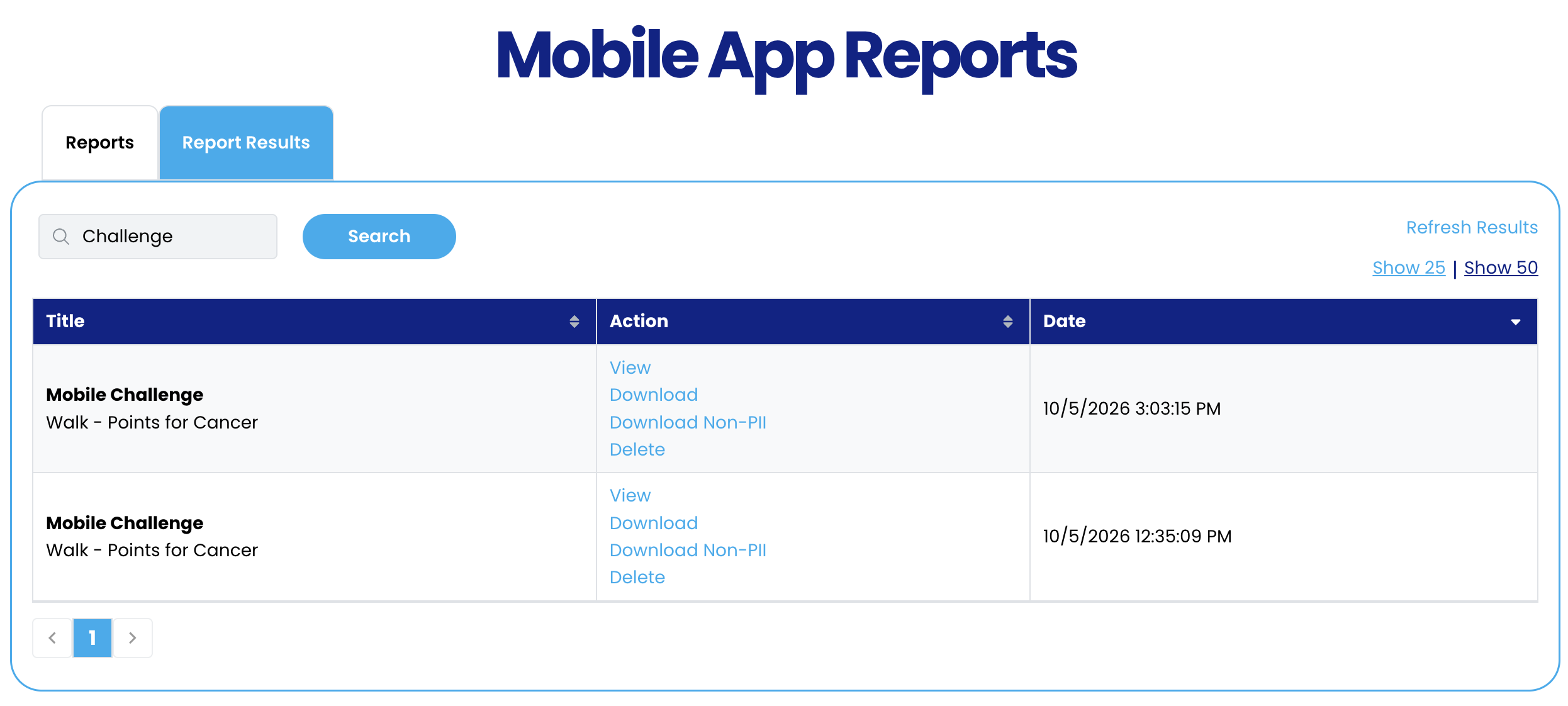
- Click on the Report Results tab
- You will be able to View the report
- Download the report (this report will include personally identifiable information)
- Download non-PLL (this report will not include personally identifiable information)
- Delete: You will be able to delete the report you ran.
- Click on the Report Results tab
-
-
- Event Check-In
- Click on the radio button next to Event Check-In
- Click Next
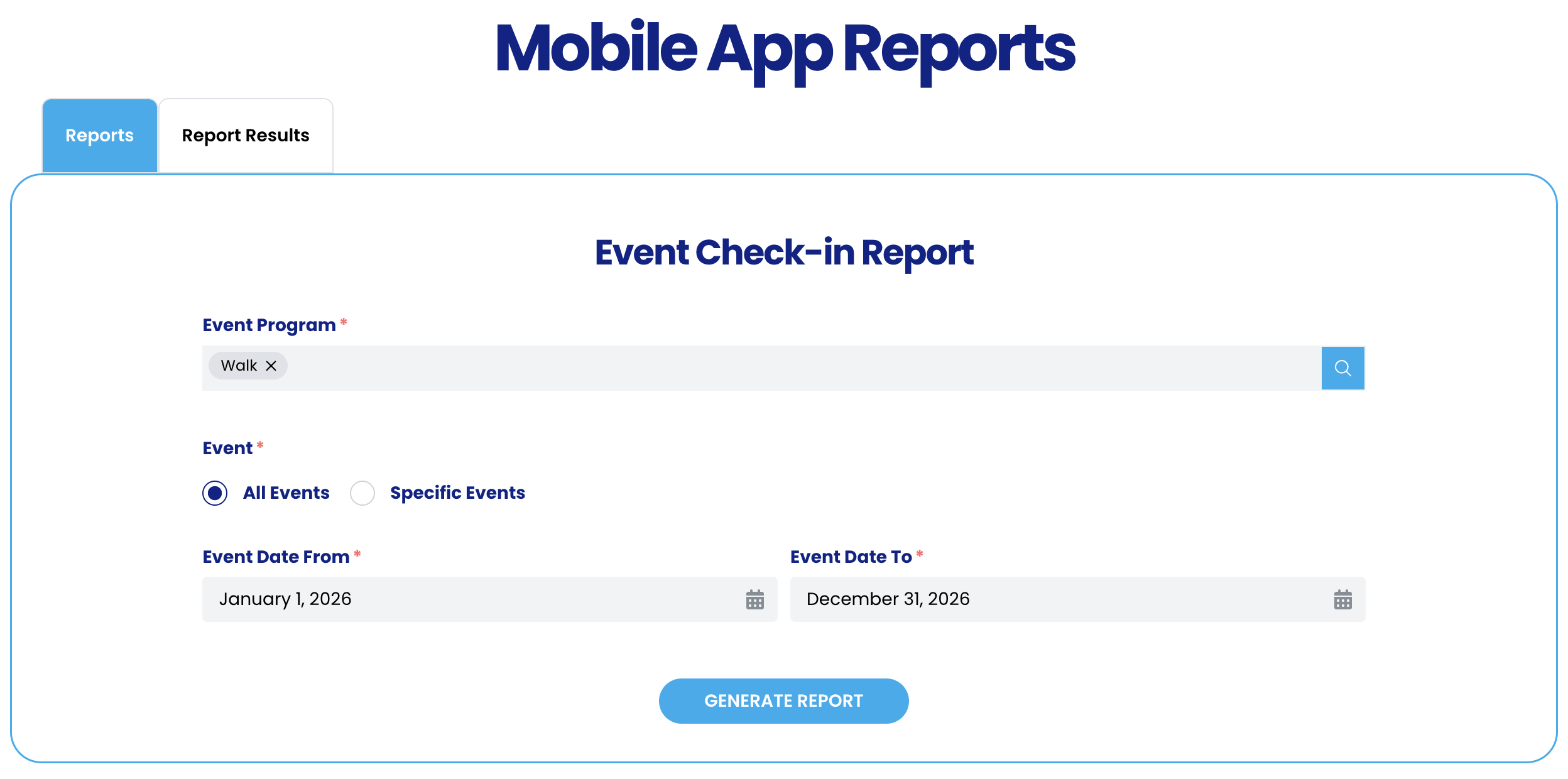
- Fill out all the required fields
- Event Program: The program you want to run the report for.
- Event: You can select all events or specific events
- If you choose specific events, you can select multiple events.
- Event Date From: Enter the dates the event(s) will fall within the range.
- Note: If you don’t see the event, expand the date range.
- Click Generate Report
- Event Check-In
-
-
- Click on the Report Results tab
- You will be able to View the report
- Download the report (this report will include personally identifiable information)
- Download non-PLL (this report will not include personally identifiable information)
- Delete: You will be able to delete the report you ran.
- Click on the Report Results tab
-