

How to add a test user for messages
Last updated: Oct 05, 2026
24
views


How to add a test user for messages
Learn how to add a test user for messages through our Admin Portal with this article.
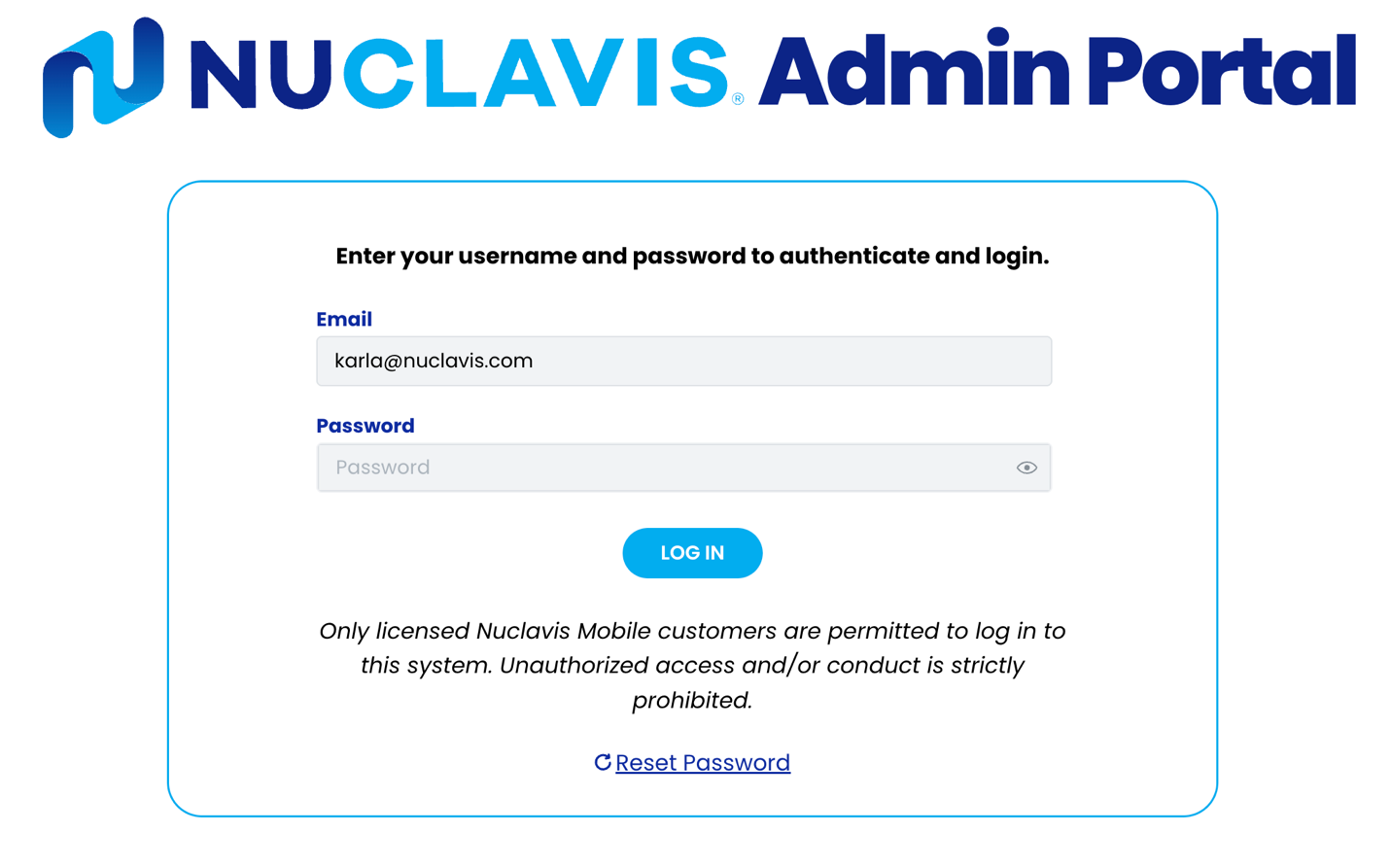
- Accessing the Admin Portal.
- Navigate to https://admin.nuclavis.com/login
- Sign in using your email address and Password.
- Click login
- Enter your Authentication Code
This code goes to your email (check spam or junk)
- Accessing Test Users
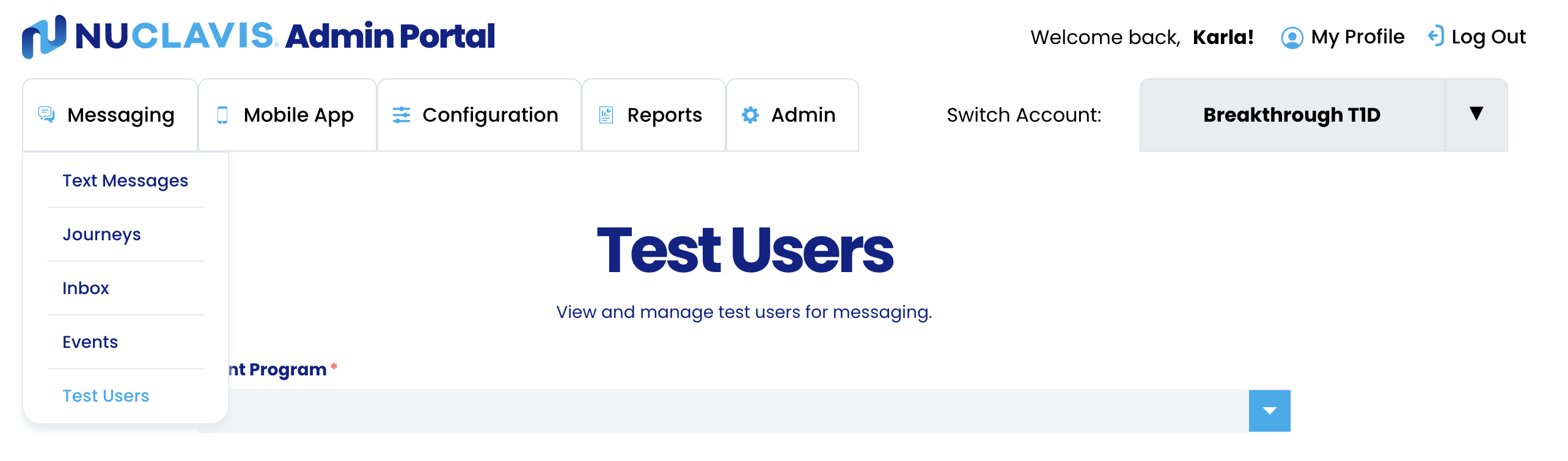
- Click on Messaging
- Click on Test Users
- Locating the User
In this section, you will locate the user who will test messages. Note: The user must be registered for an event, and the event must be in our system.
-
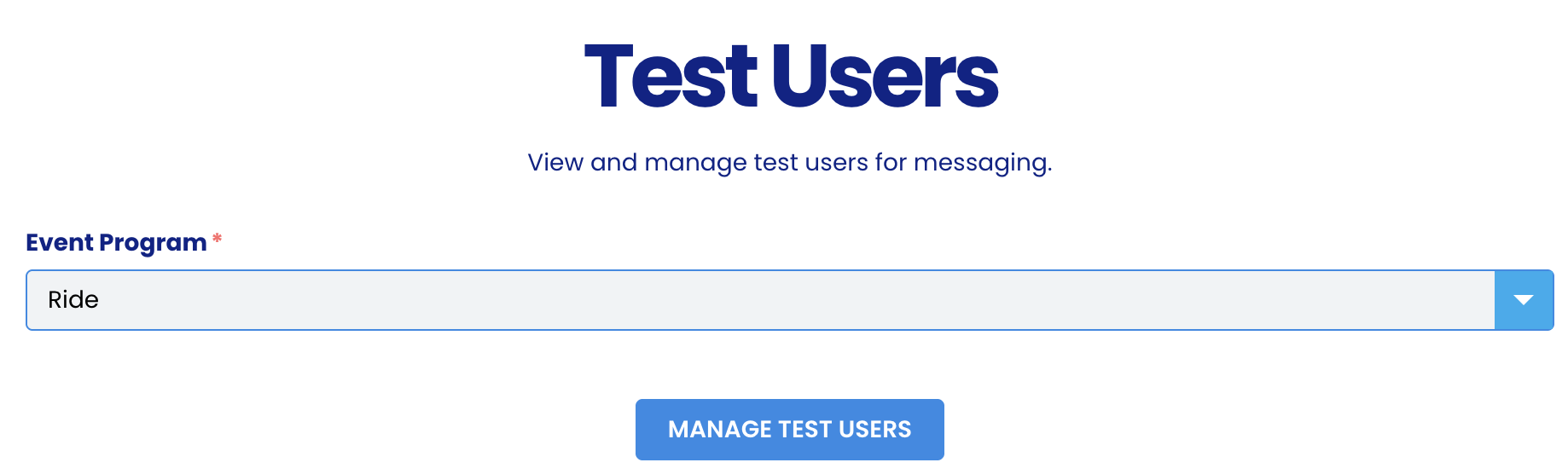
- Event Program: Select the program the user is registered for.
-
- Click Manage Test Users.
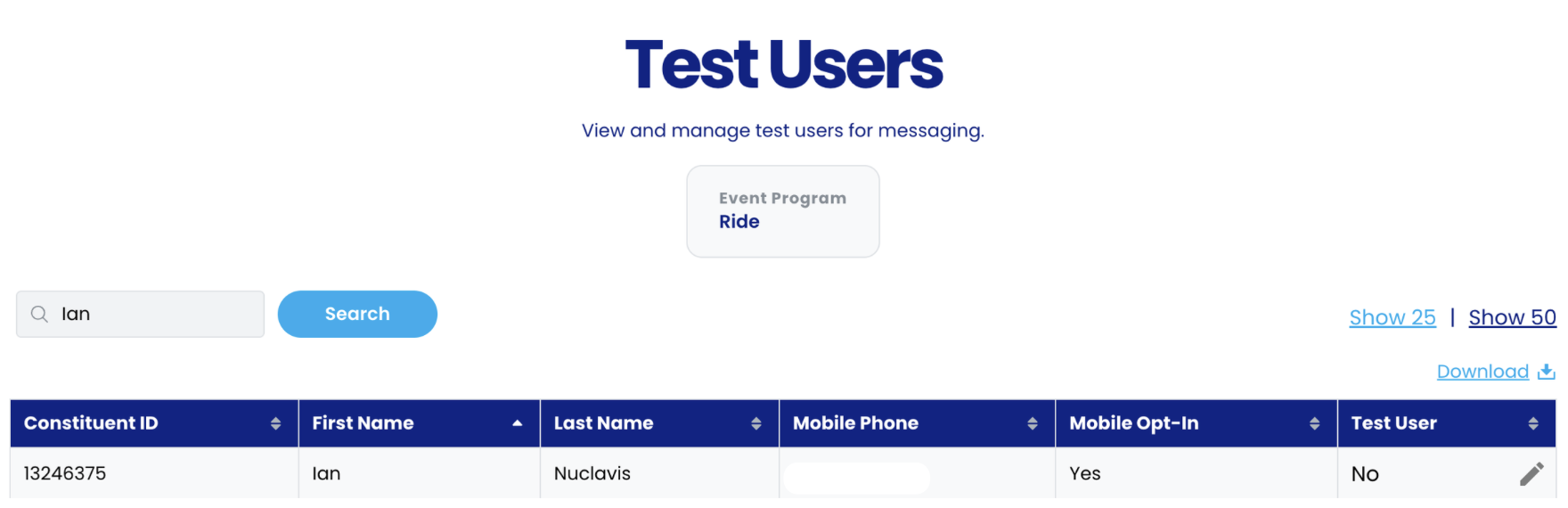
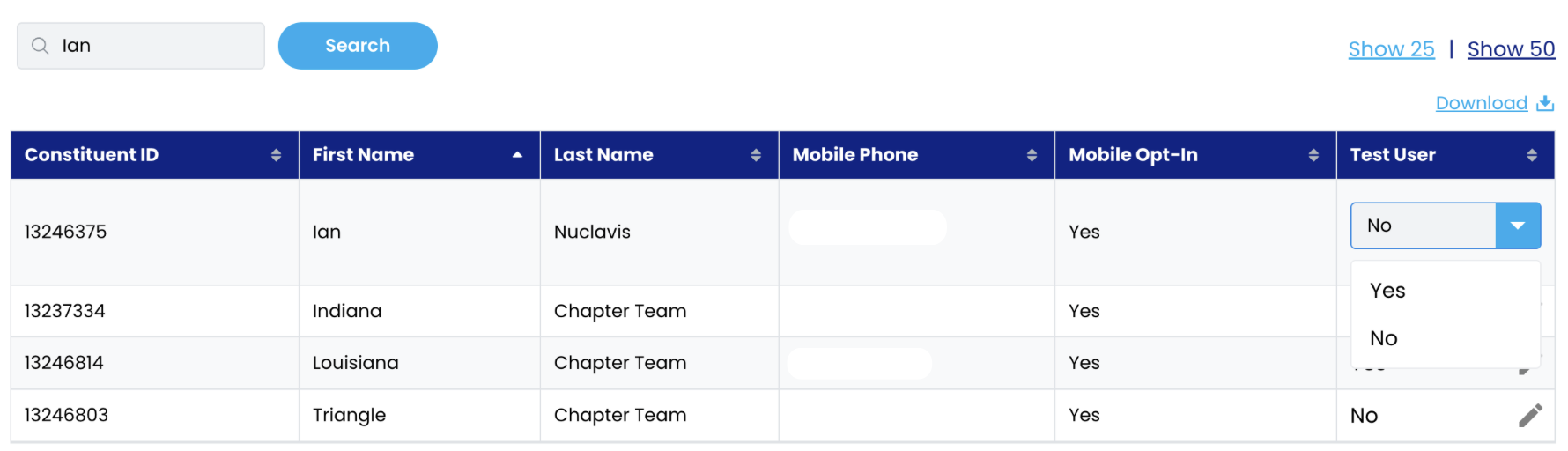
- This will open a new page with the following information:
- Constituent ID: The user’s unique identifier from their platform.
- First Name: The user’s first name.
- Last Name: The user’s last name.
- Mobile Phone: The user’s number that the messages will go to.
- Mobile Opt-in: Will determine if the user is opted in to receive messages.
- Test User: Will say yes if the user is set as a Test User
- Enter either the Constituent ID, First name, Last name, or Mobile Phone number in the search box to quickly find the user.
- Click Search
-
- Click the pencil icon to edit the user to be a test user.
- Change it from No to Yes.
-
- The user is now a test user.

