How to set up a one-time message
Last updated: Oct 05, 2026
58
views


How to set up a one-time message
Learn how to set up a one-time message to share information with your participants.
- Accessing the Admin Portal.
- Navigate to https://admin.nuclavis.com/login
- Sign in using your email address and Password.
- Click login
- Enter your Authentication Code
This code goes to your email (check spam or junk)
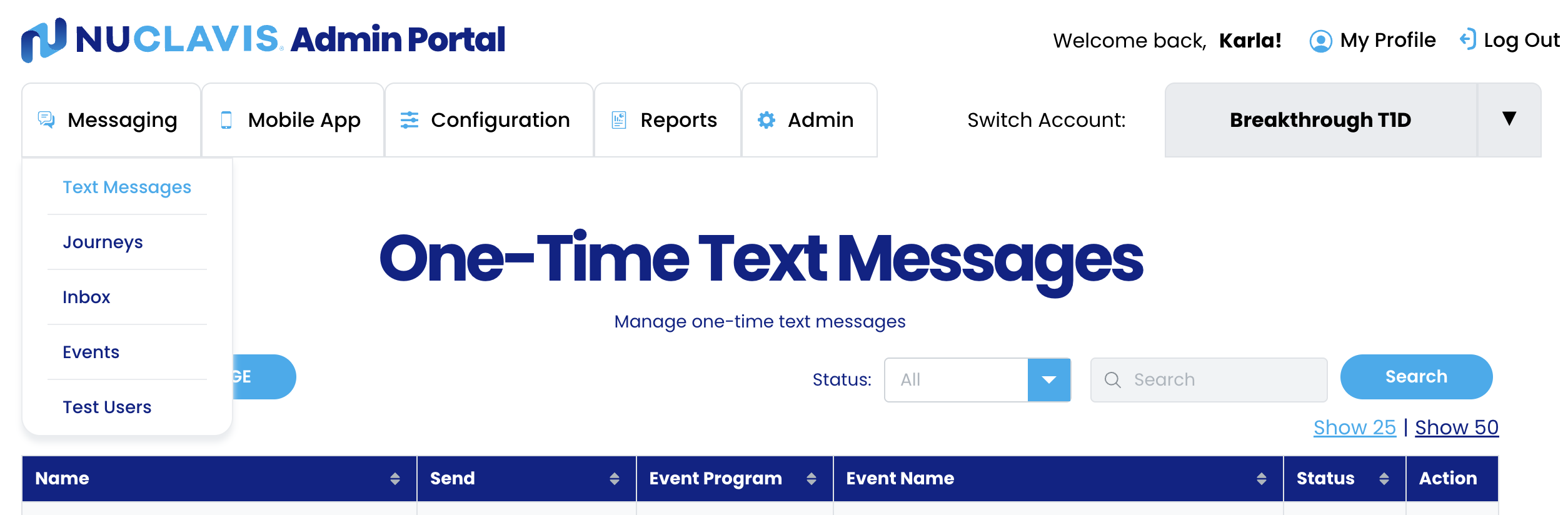
- Accessing One-Time
- Click on Messaging
- Click on Text Messages
- Click on Add Text Message
- Setting up Message audience
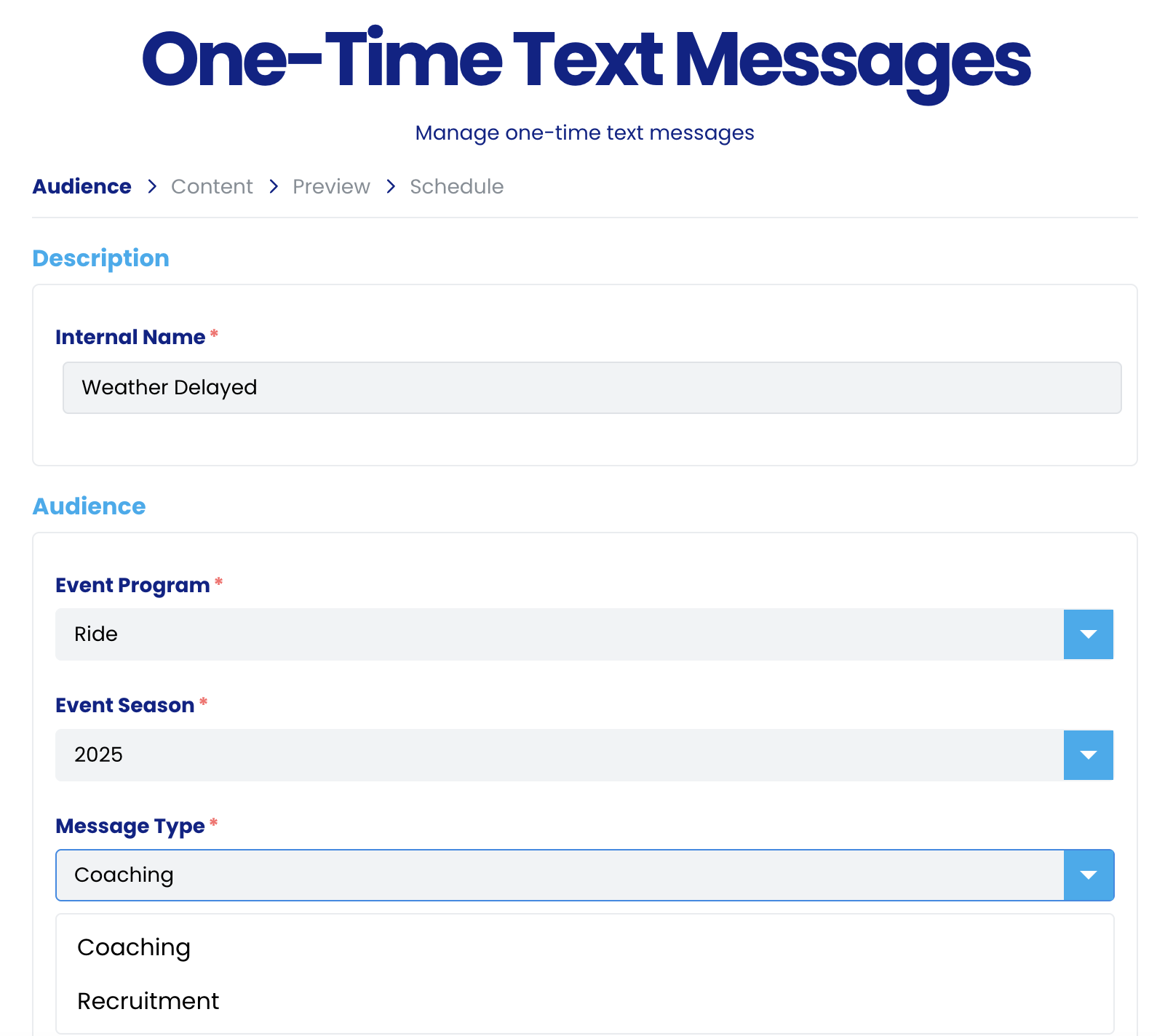
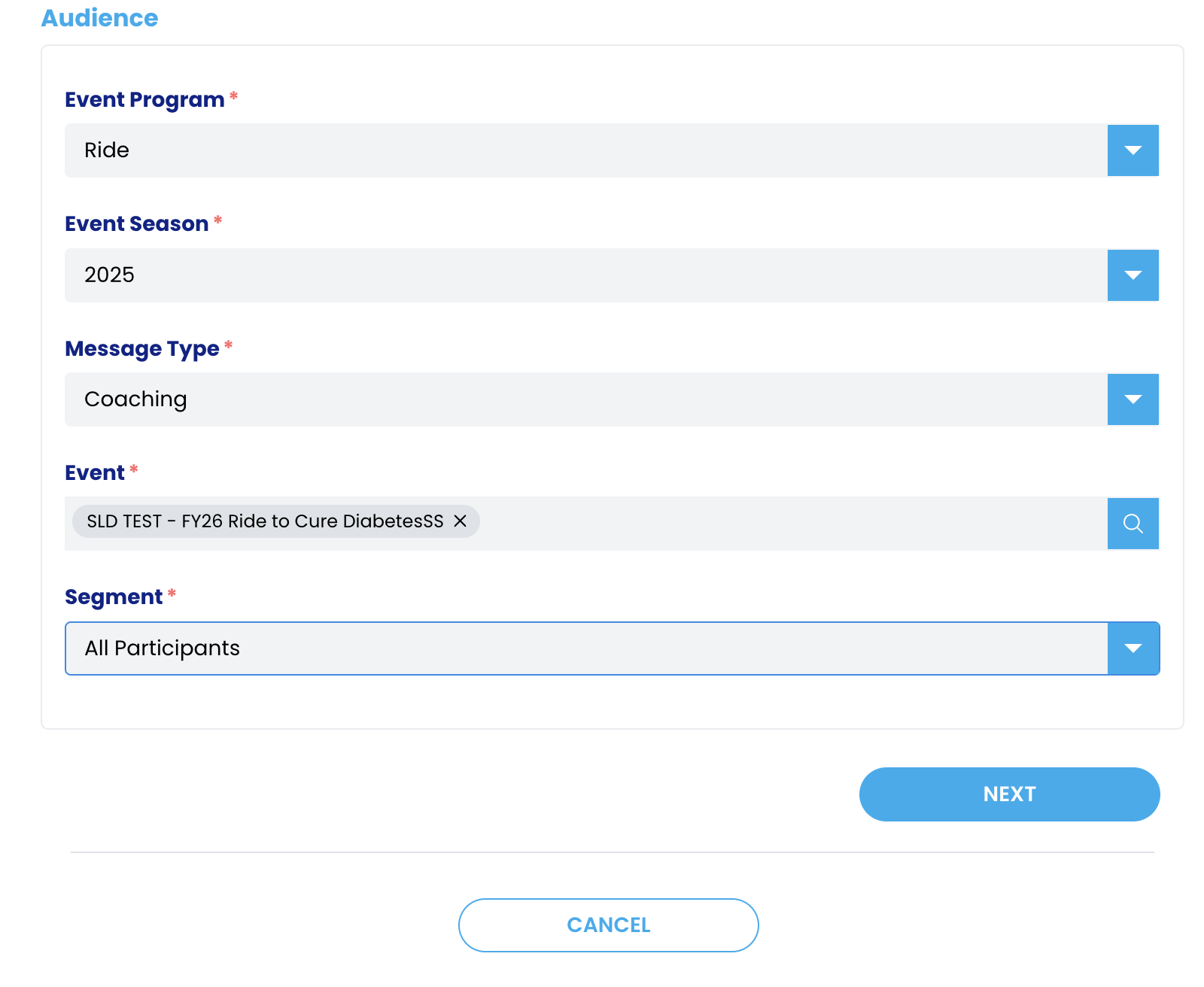
In this section, you will determine who will be receiving the message.
-
- Internal Name: Decide on an internal name; only you and our team will be able to see this title.
- Event Program: Select the event program if you have multiple event programs using messages.
- Event Season: It can be a past season if the message is for recruitment, or the current season if the message is an active event.
- Message Type: Can be Coaching or Recruitment
- Coaching: This will go to any participants currently registered to an event
- Recruitment: This goes to anyone not registered for an event.
-
- Event: Select the event you want the message to go to. Note: You can select more than one event.
- Segment: You can select between all participants or team captains.
- All participants: All participants registered to the event.
- Team Captains: Any participant registered as a team captain.
-
- Click next to move on to the next section.
- Entering Content
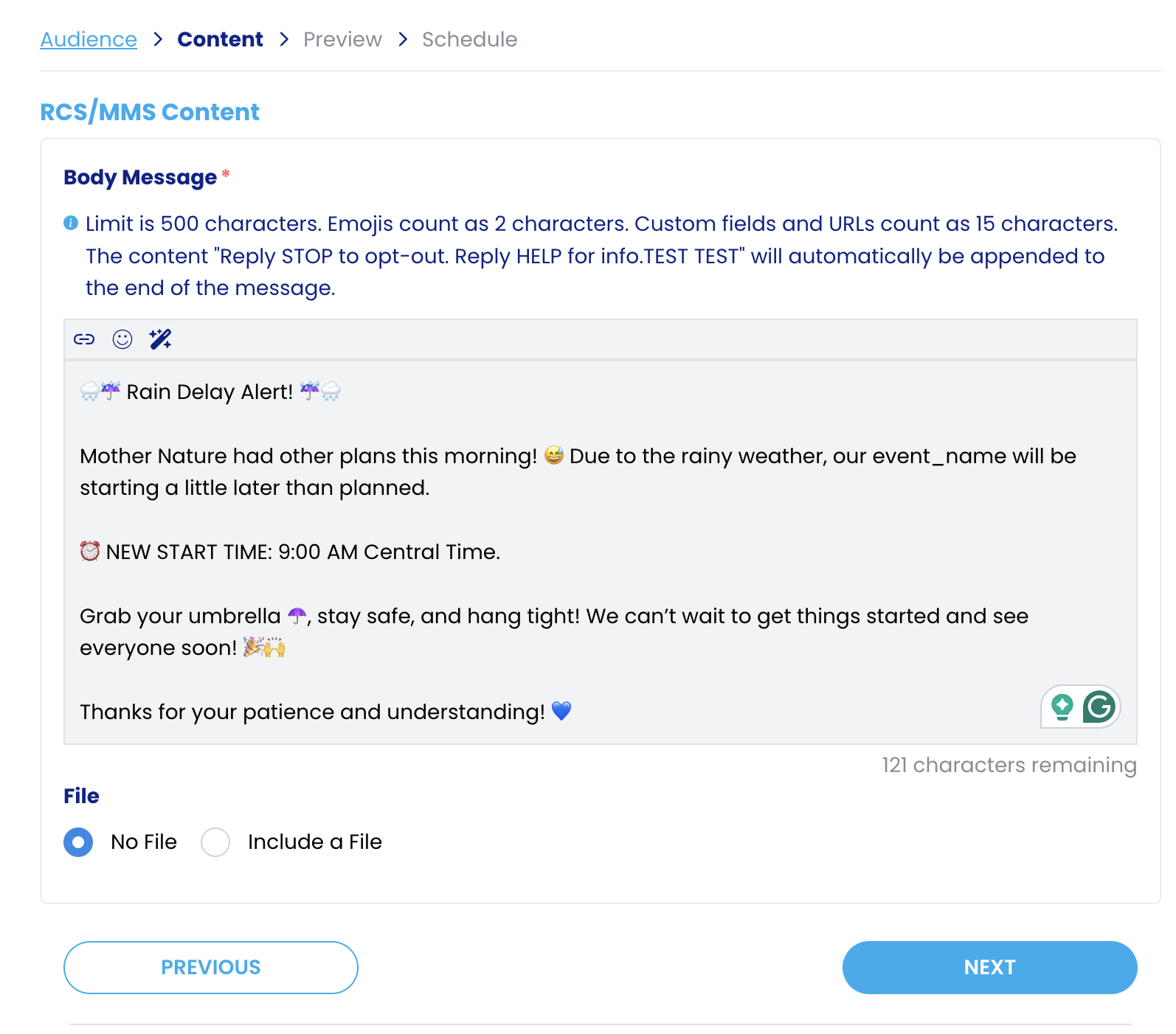
In this section, write your message. You can include emojis, images, and links. These are texts; keep them short, sweet, and to the point.
-
- Body Message: Enter your context. You can also include multiple variables.
- Event Name:
- First Name:
- Body Message: Enter your context. You can also include multiple variables.
-
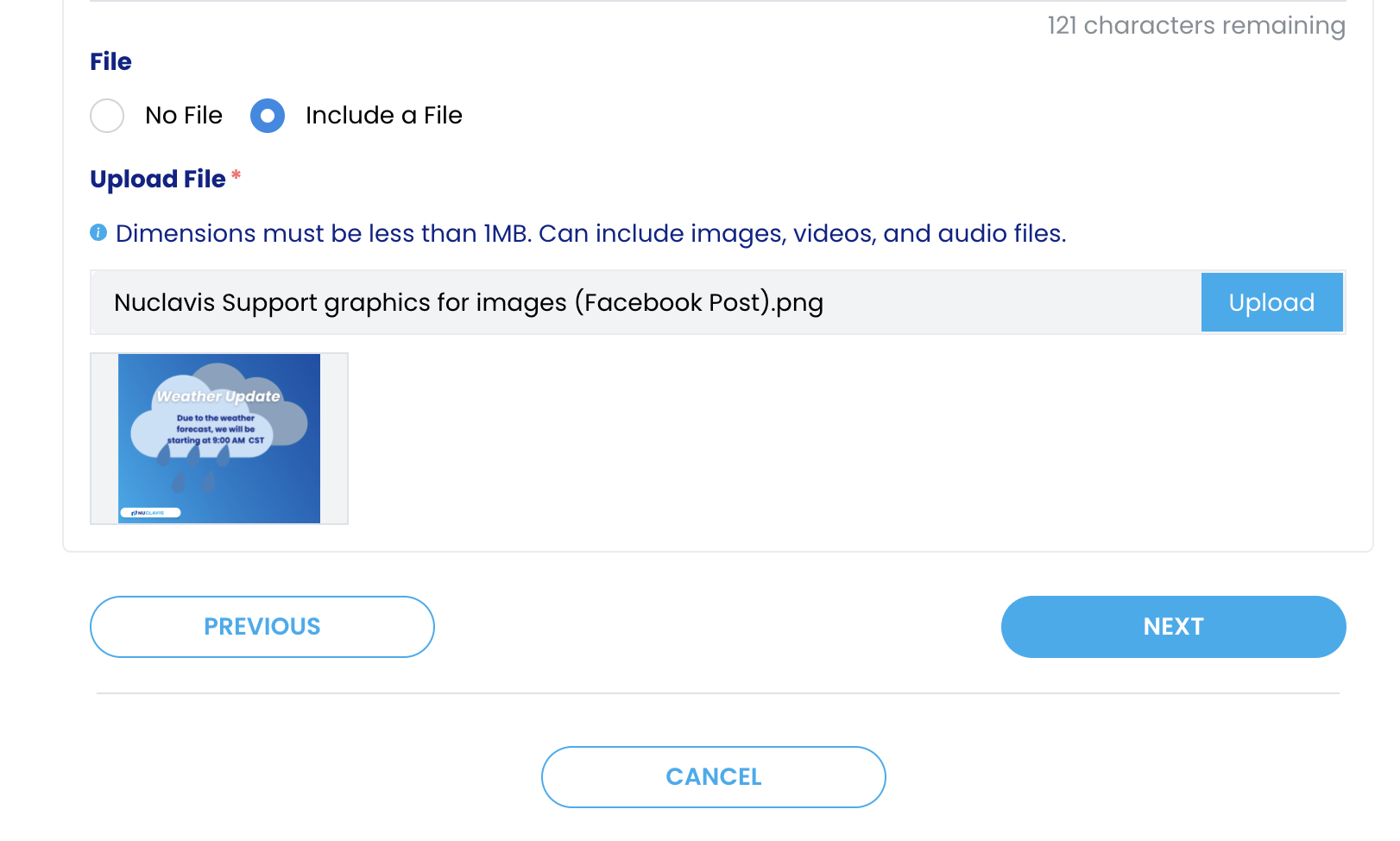
- Upload a file: This is not required but helps drive the message.
- Click on the radio button to include a File
- Click on Upload to open your files
- Select the file you would like to upload
- Upload a file: This is not required but helps drive the message.
-
- Click Next to move on to the preview section.
- Preview Content
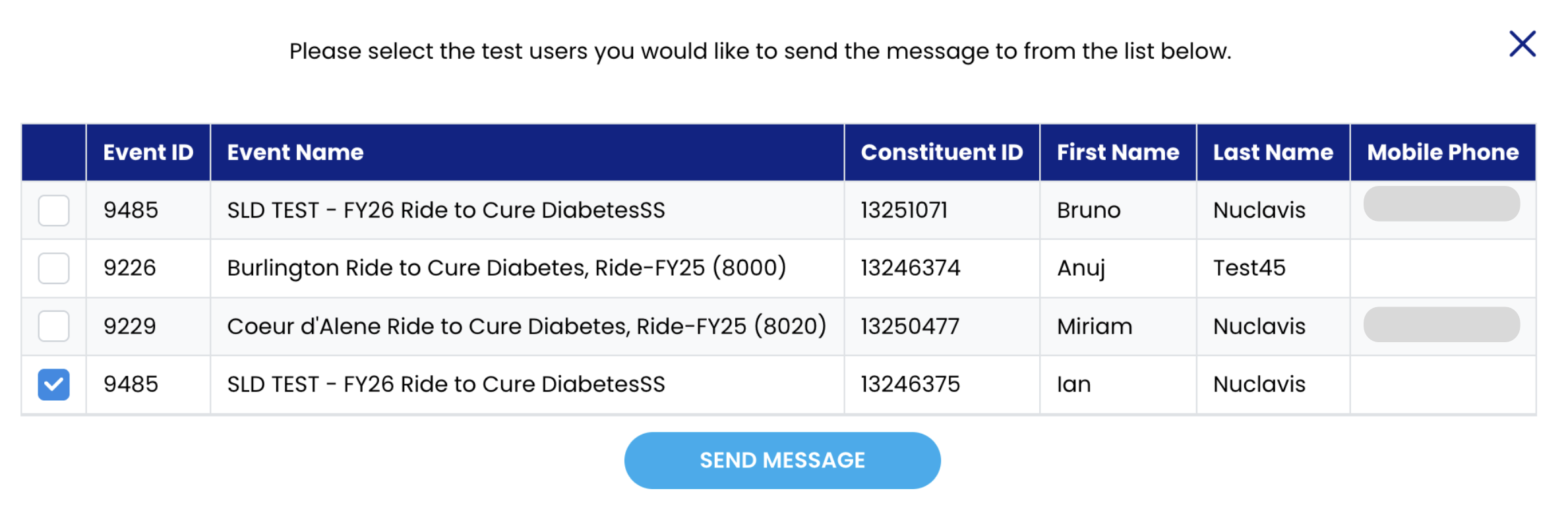
In this section, you can see how your message will be sent. If you would like to send a test message to your device, you would do it in this section.
-
- Click on send test.
- Check the box for your test user.
- Click on Send Message.
- Click Next to move on to Schedule
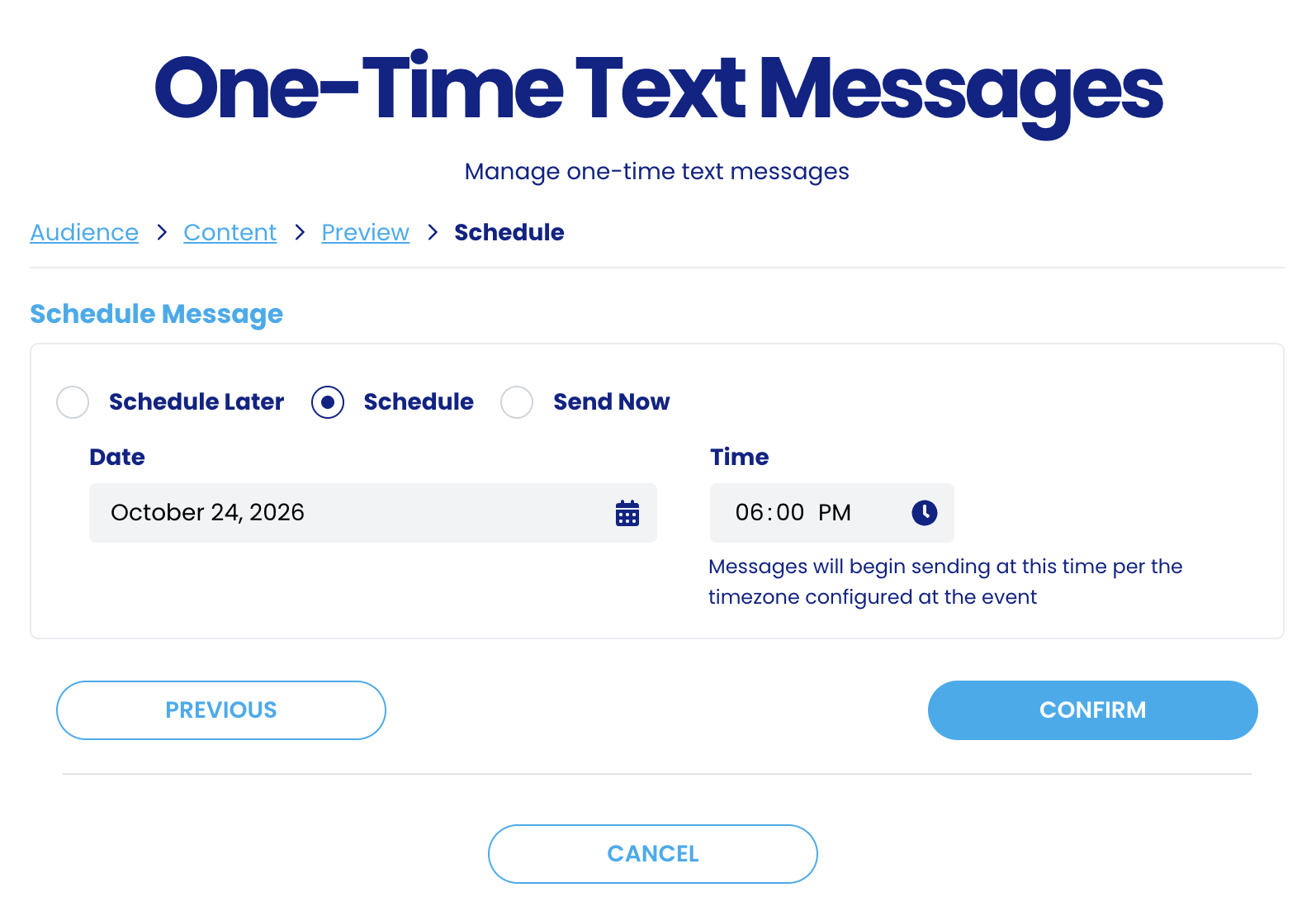
- Schedule Message
In this section, you will determine when you would like the message to be sent. You will have three different options.
-
- Schedule Message: This will save your message in draft mode.
- Schedule: This will let you schedule your message to be sent in the future.
- Click on the Schedule radio button.
- Click on the Date and select the date the message needs to go out.
- Click on Time to set the time the message will go out.
- Click on Confirm to set the message.
- Send Now: The message will go out instantly.