

How to manage your Inbox
Last updated: Oct 06, 2026
33
views


How to manage your Inbox
Learn how to manage your Inbox to communicate with your participants who respond to Messages. Note that messages will only be available in the inbox for 90 days. After that, they will no longer appear.
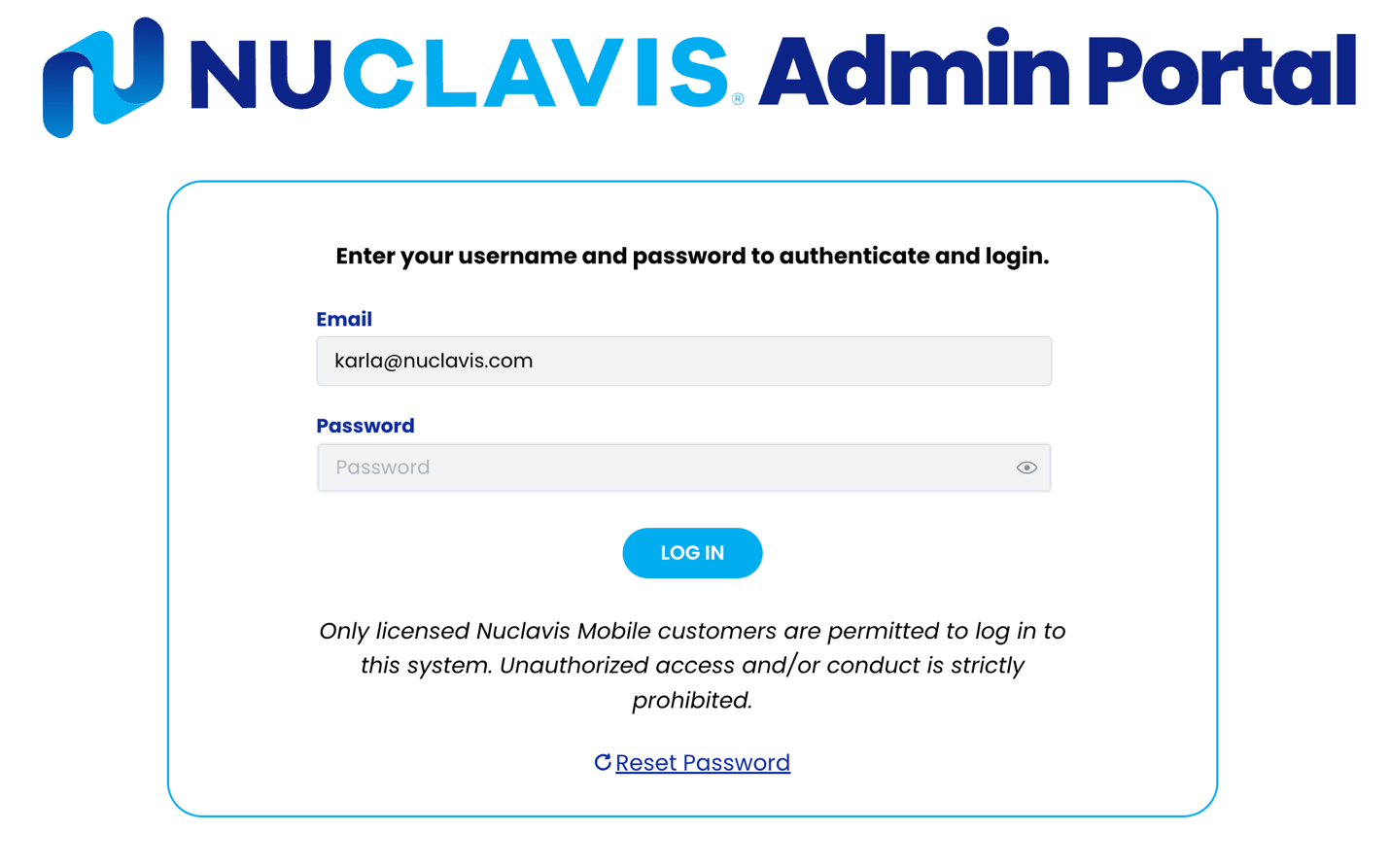
- Accessing the Admin Portal.
- Navigate to https://admin.nuclavis.com/login
- Sign in using your email address and Password.
- Click login
- Enter your Authentication Code
This code goes to your email (check spam or junk)
- Accessing Inbox
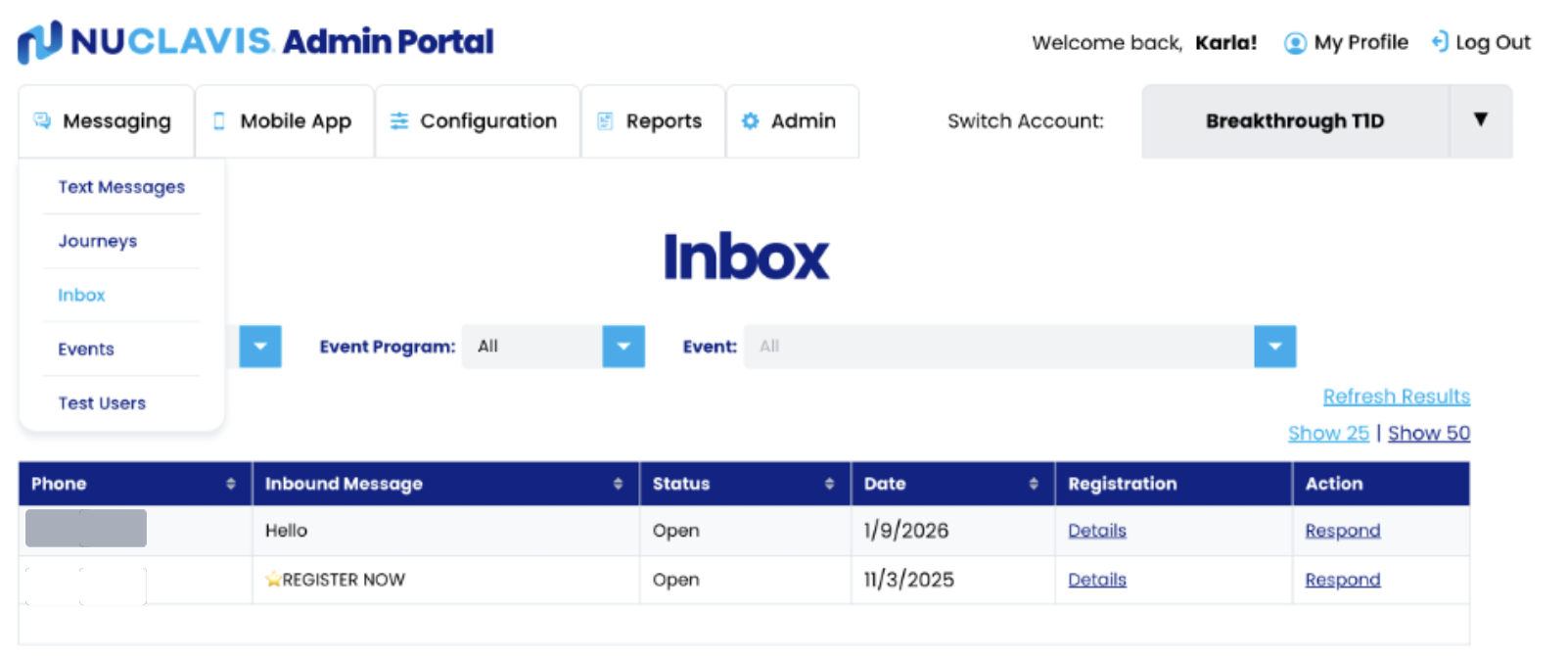
- Click on Messaging
- Click on Inbox
- Locating the Message
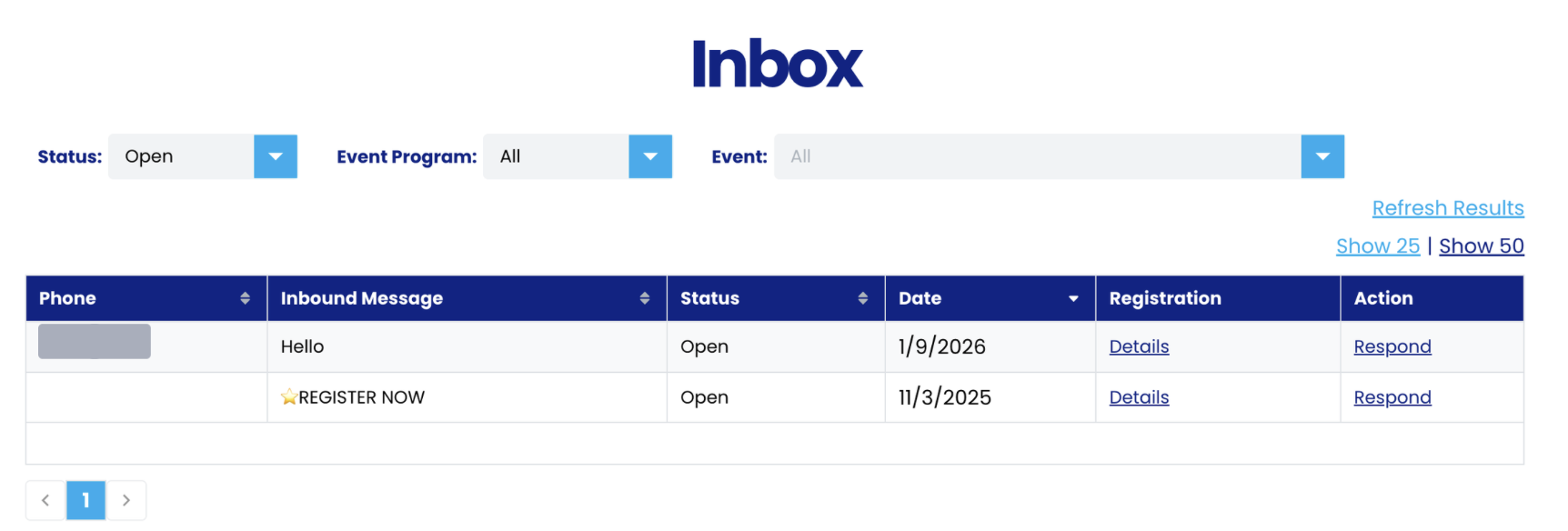
In this section, you will locate the message you need to respond to. You will see several fields.
-
- Phone: This is the phone number of the person who received the message.
- Inbound Message: This is the message the person responded with.
- Status: Will have three different statuses.
- Open: A person responded to a message and needs a reply from the client in the Inbox.
- Responded: The message has already been responded to by the client.
- Resolved: If a response is not needed, mark as Resolved.
-
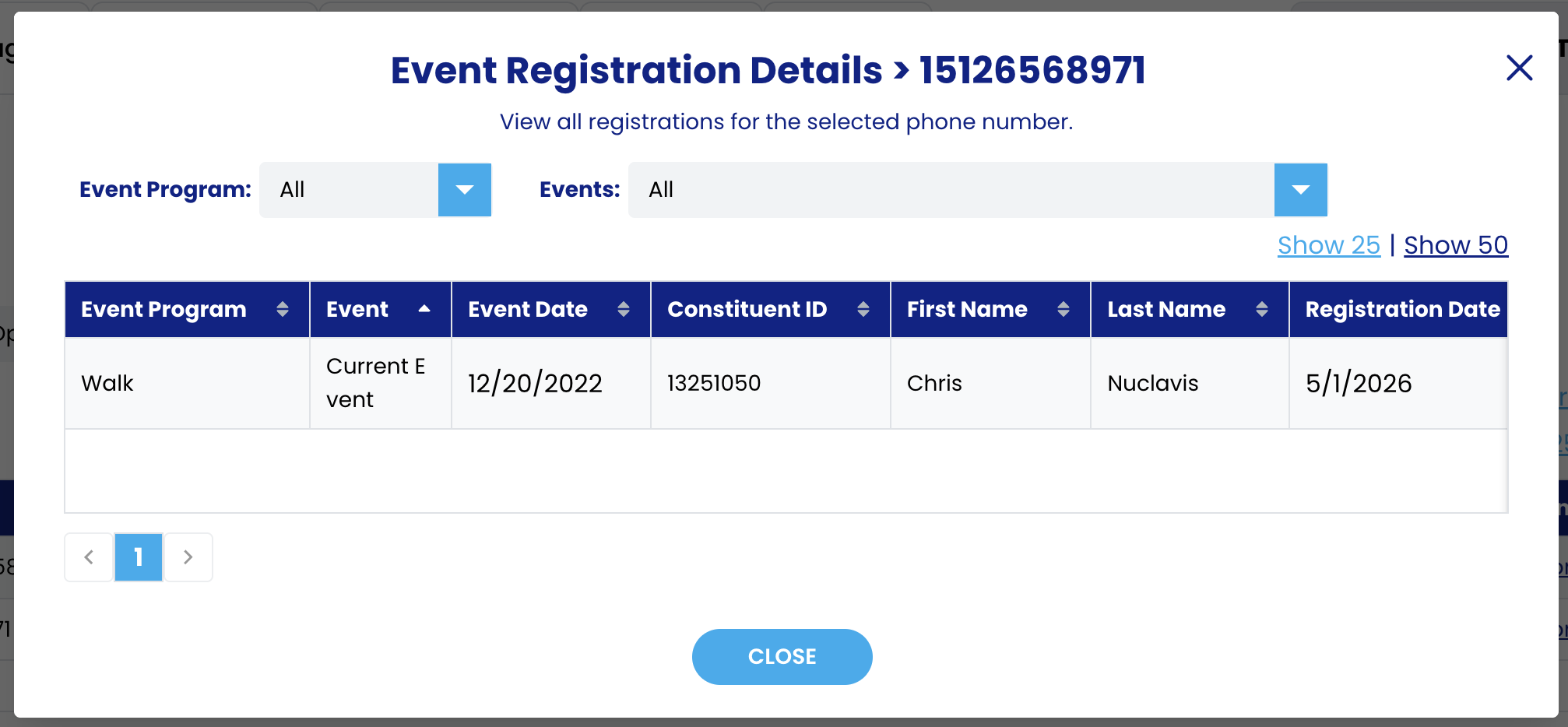
- Registration: Includes user information such as the event program, event, event date, constituent ID, first name, last name, and registration date.
-
- Action: Includes a Response button that lets you view the conversation and reply.
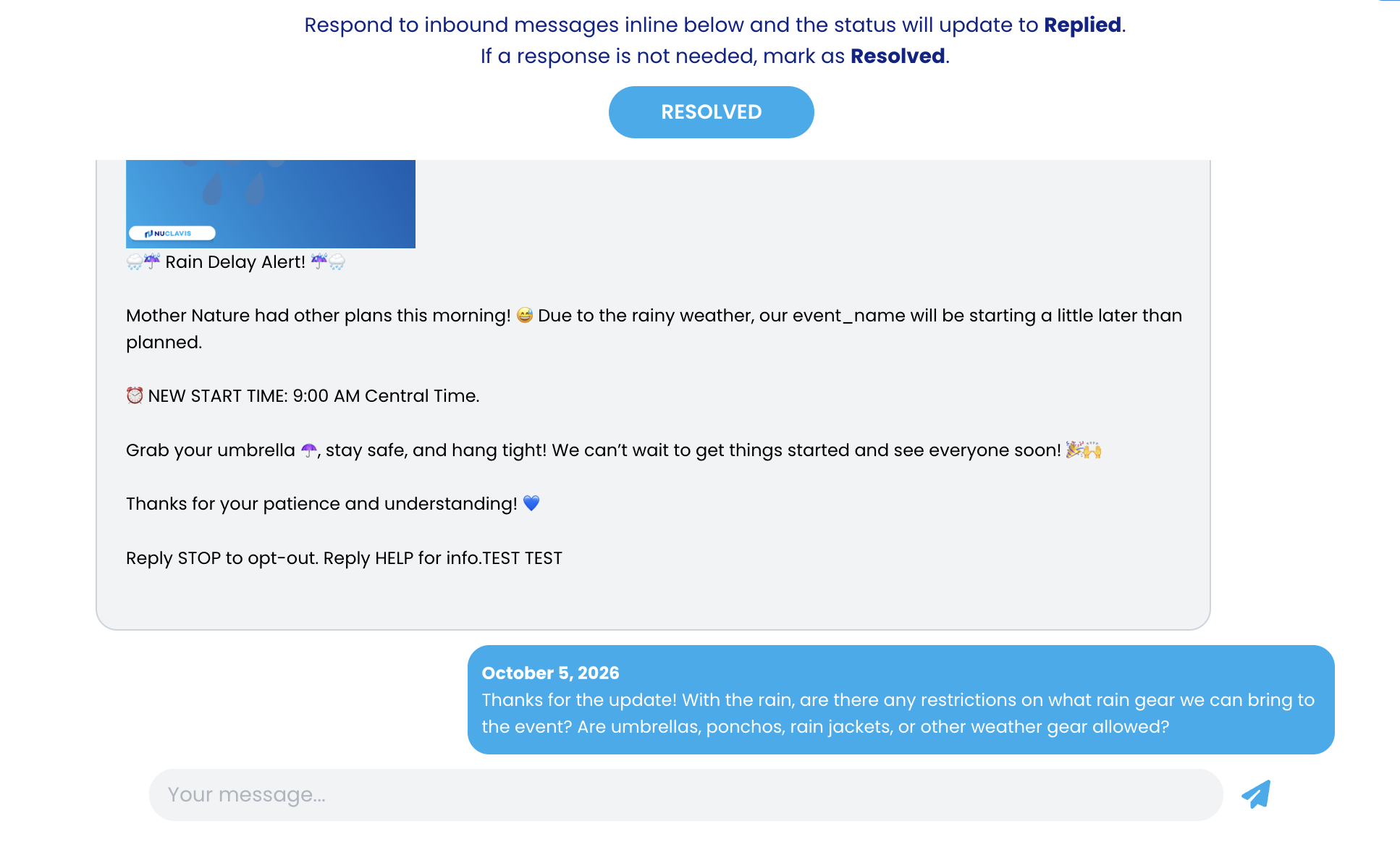
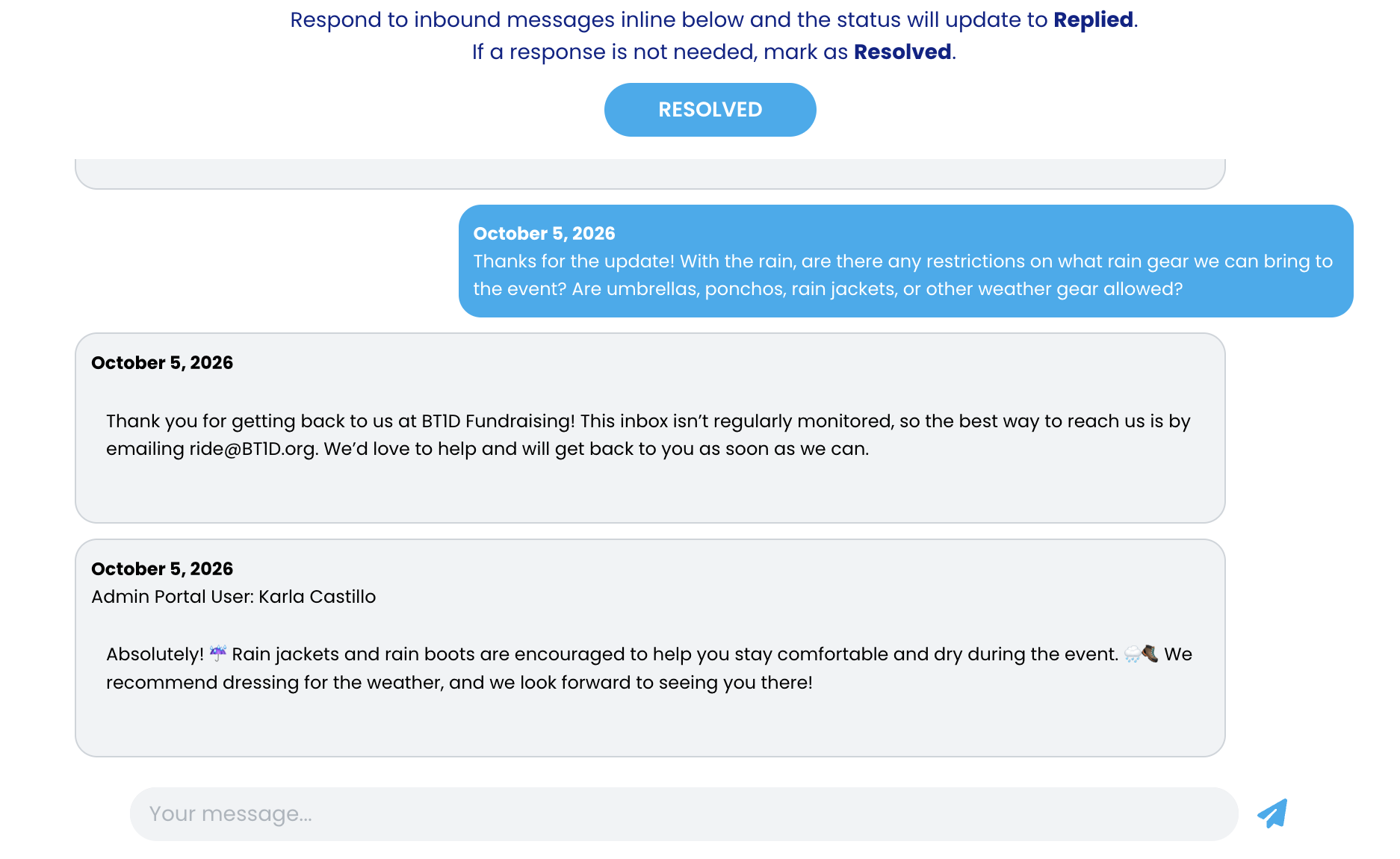
- Click on Respond
- You will be able to read the message or conversation
- Type your message in the text box
- Click on the blue arrow to send the message.
- Action: Includes a Response button that lets you view the conversation and reply.
- Filtering Event Information
In this section, you can filter messages by status, event program, and event.
-
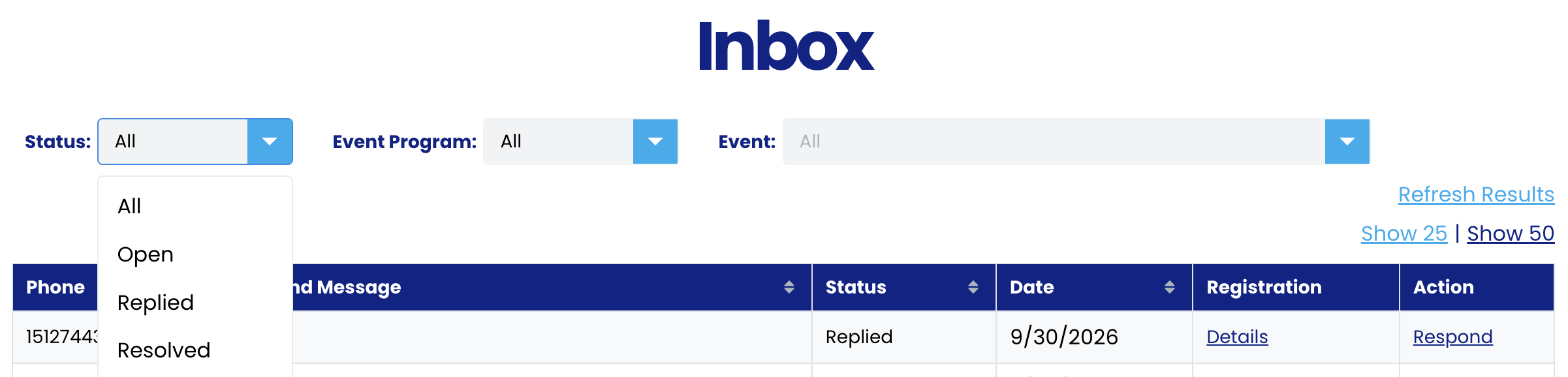
- Status: click the blue arrow to select the status of the messages.
-
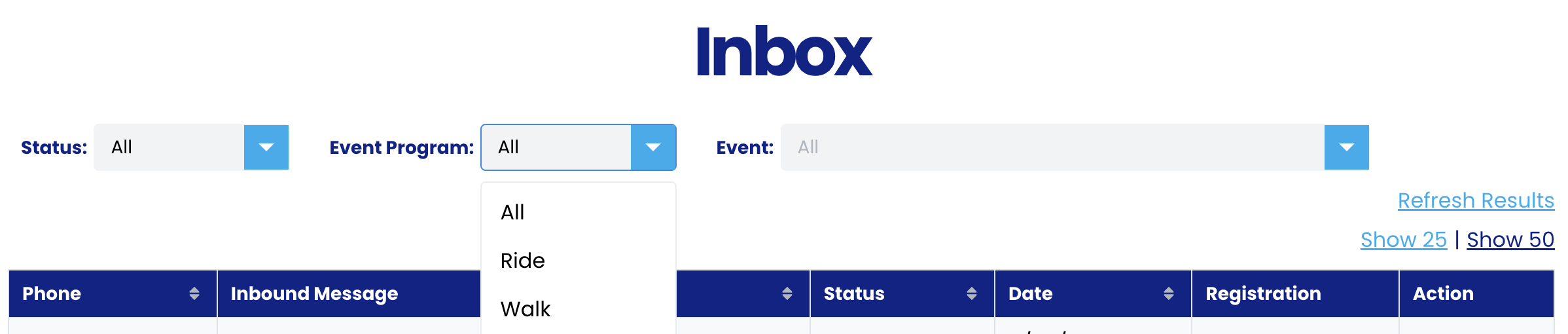
- Event Program: Click on the blue arrow to select the event program.
-
- Event: Click on the blue arrow to select the event.


