

How to test Journeys
Last updated: Oct 05, 2026
45
views


How to test Journeys
Learn how to test Journeys for messages through our Admin Portal with this article.
- Accessing the Admin Portal.
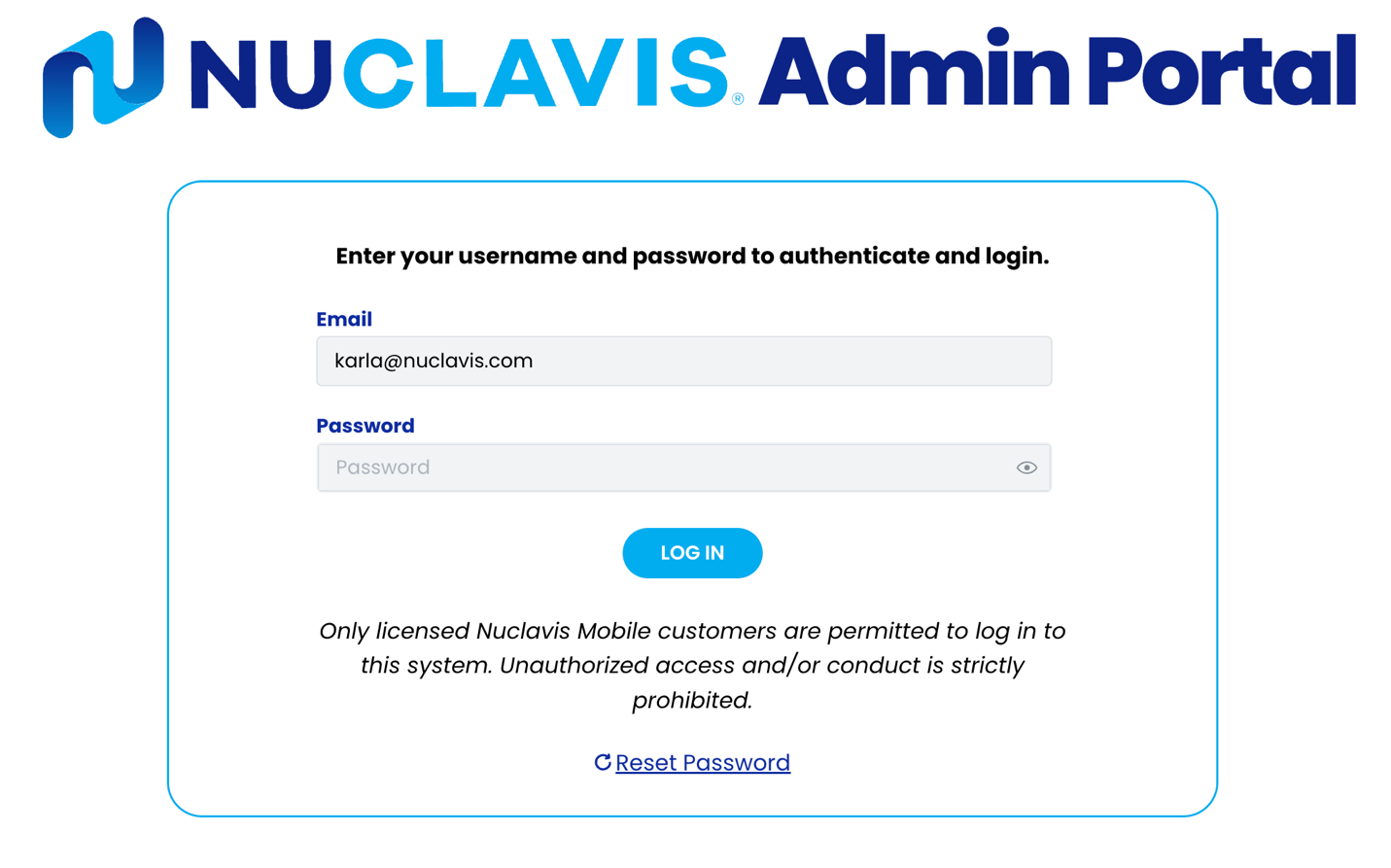
- Navigate to https://admin.nuclavis.com/login
- Sign in using your email address and Password.
- Click login
- Enter your Authentication Code
This code goes to your email (check spam or junk)
- Accessing Journeys
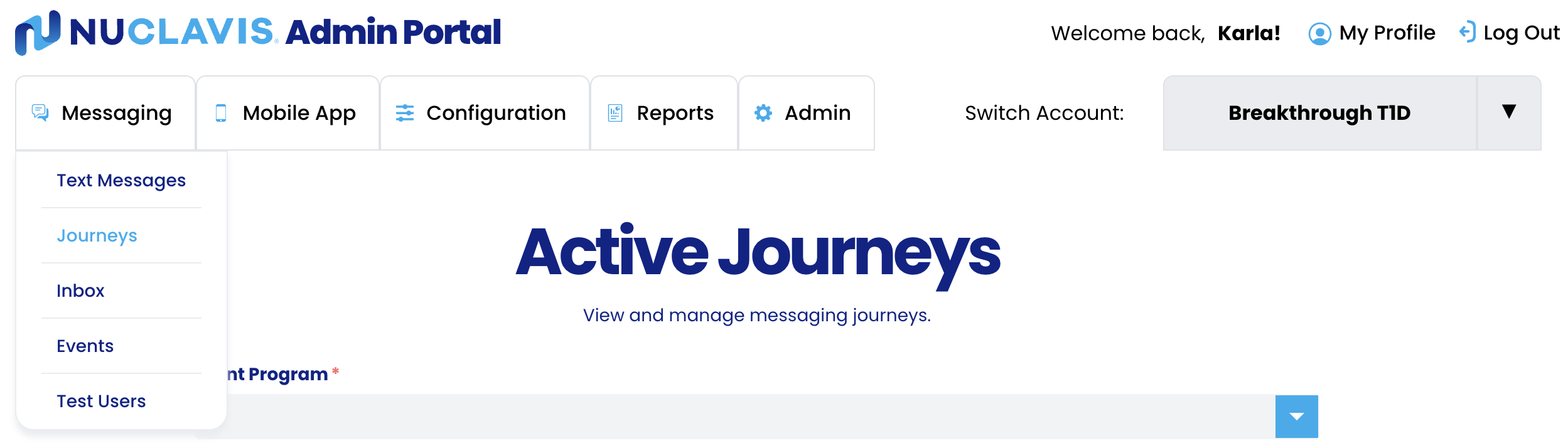
- Click on Messaging
- Click on Journeys
- Locating the Messages
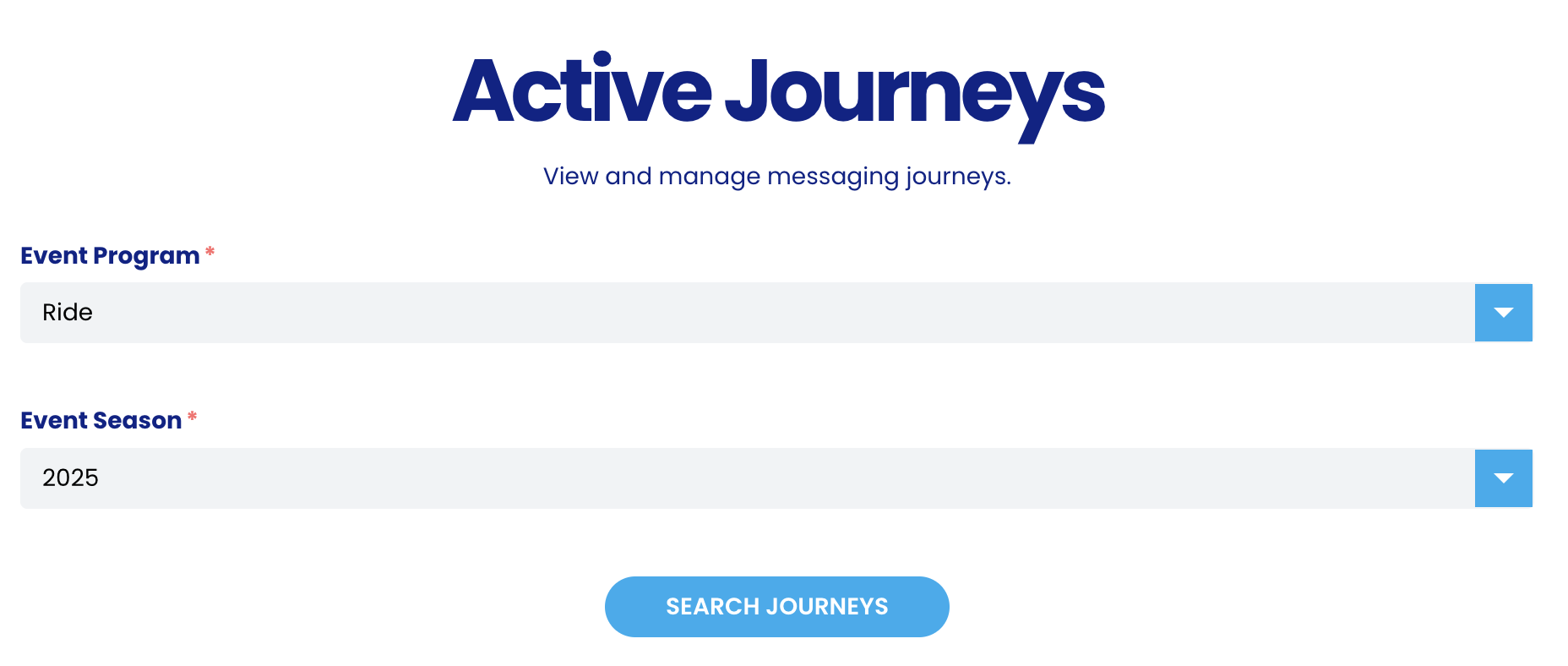
In this section, you will select the event you are testing Journeys for.
-
- Event Program: Select the program for the Journeys that need to be tested.
- Event Season: Select the event season the Journeys need to be tested for.
- Click on Search Journeys
- Journey Details
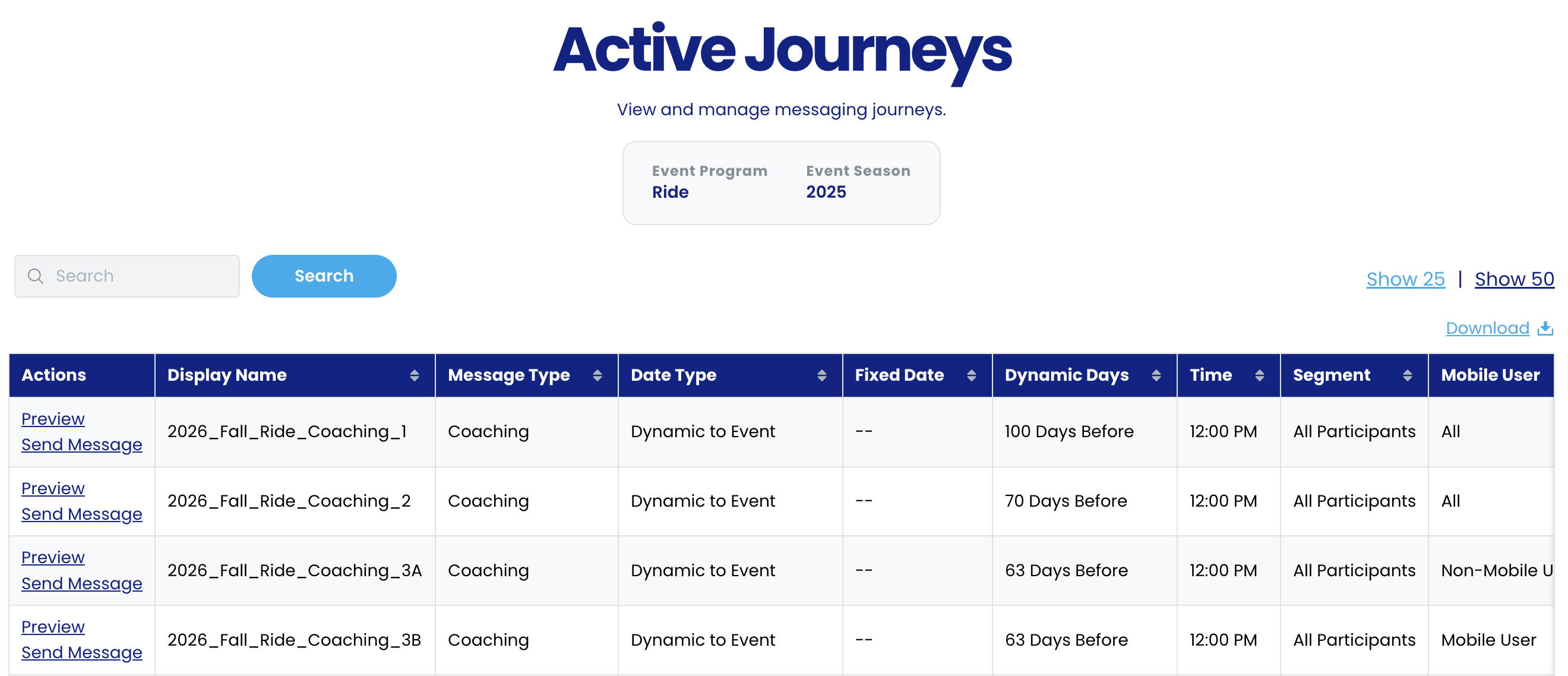
In this section, you see several fields for Journey messages.
-
- Actions: This will have two options.
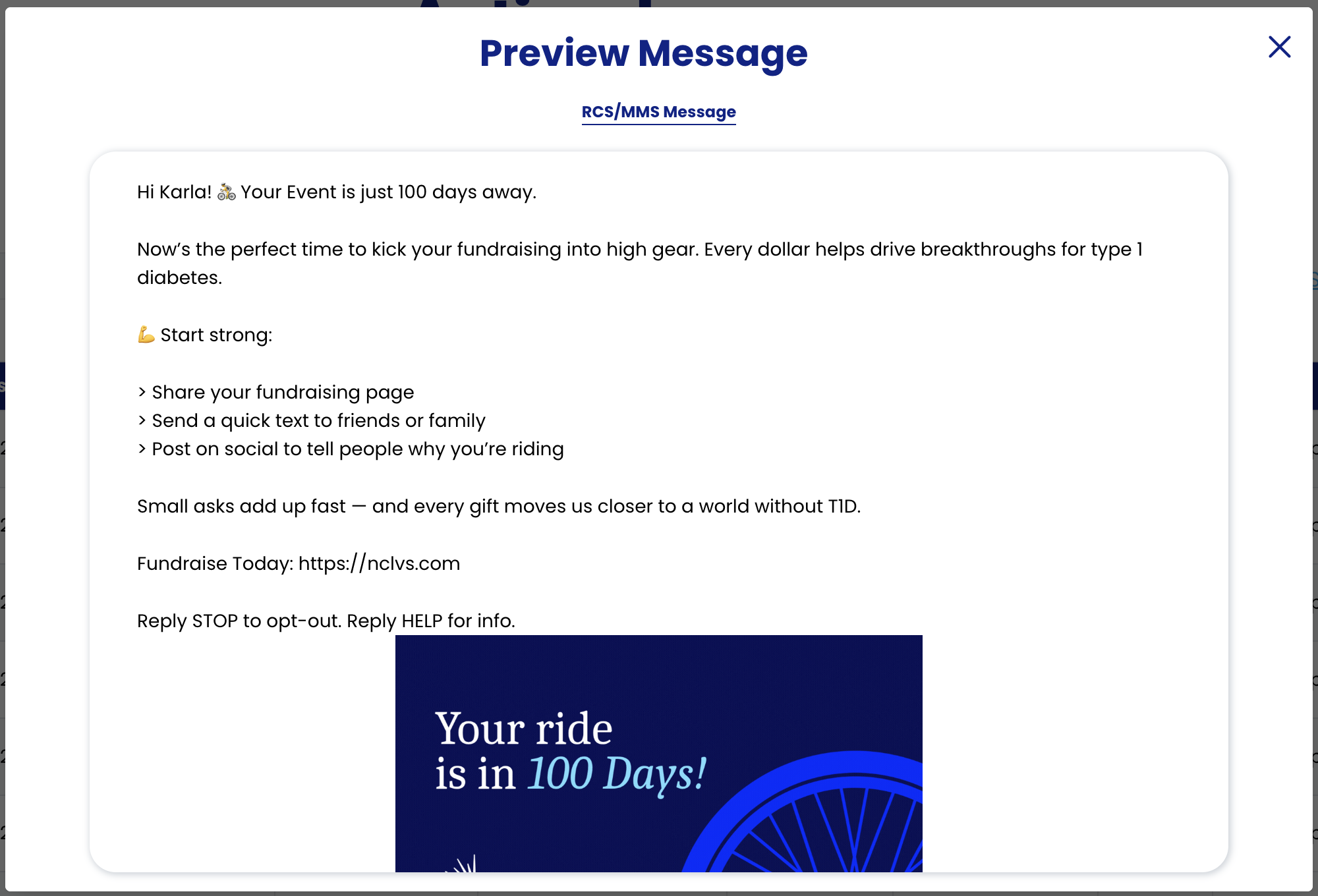
- Preview: Will let you see the message that should be going out.
- Actions: This will have two options.
-
-
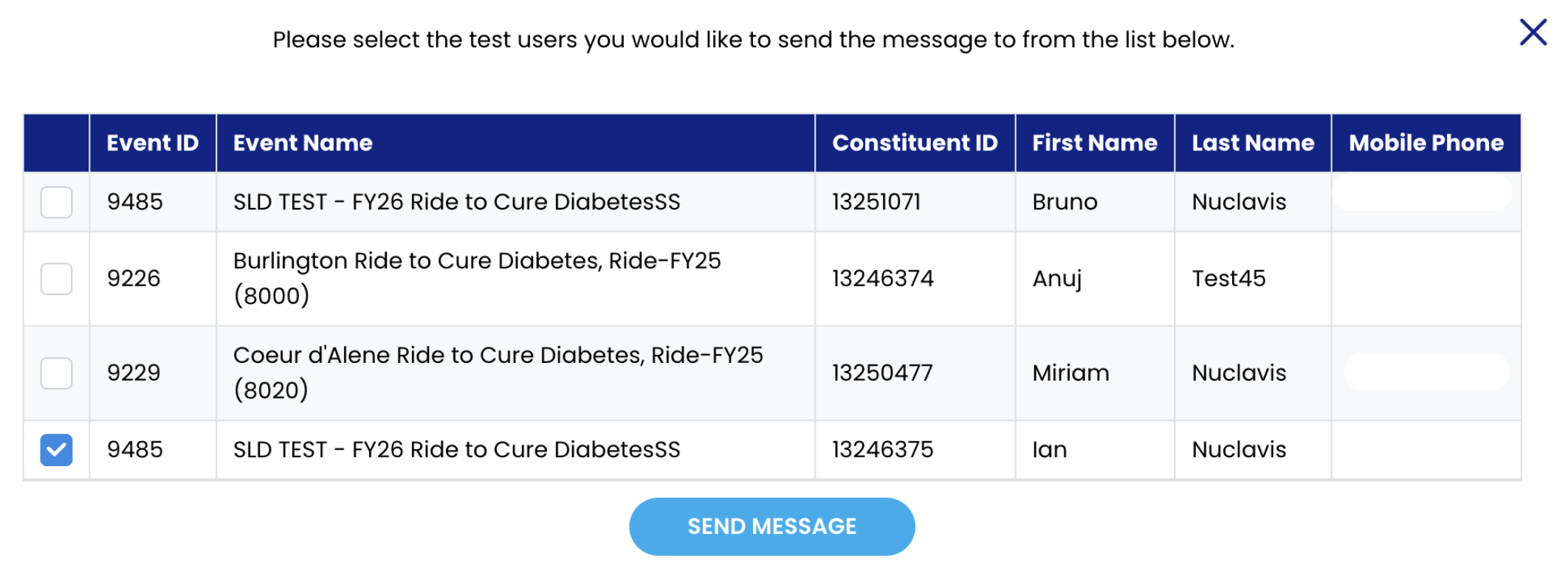
- Send Messages: Will let you send the message that should be going out.
- Click on the box for the test user you want to send the message to.
- Click on Send Message
- Send Messages: Will let you send the message that should be going out.
-
-
-
- Receive Messages: The message should appear on your phone.
-

