

How to Edit Event Information.
Last updated: Oct 05, 2026
16
views


How to manage your event
Learn how to manage your event information, such as the event date and event name, using the Nuclavis admin portal.
- Accessing the Admin Portal
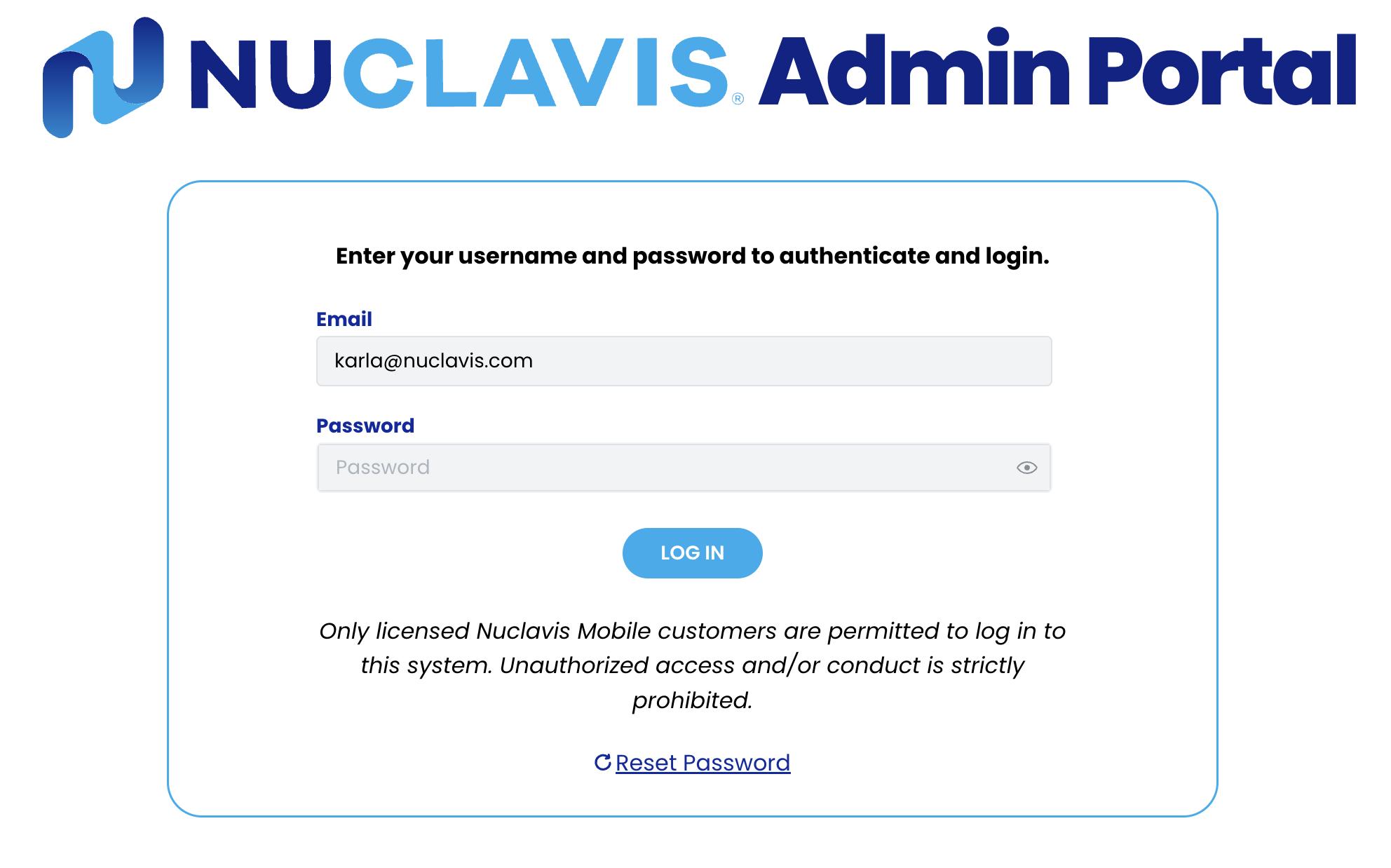
- Navigate to https://admin.nuclavis.com/login
- Sign in using your email address and Password.
- Click login
- Enter your Authentication Code
This code goes to your email (check spam or junk)
- Accessing Events
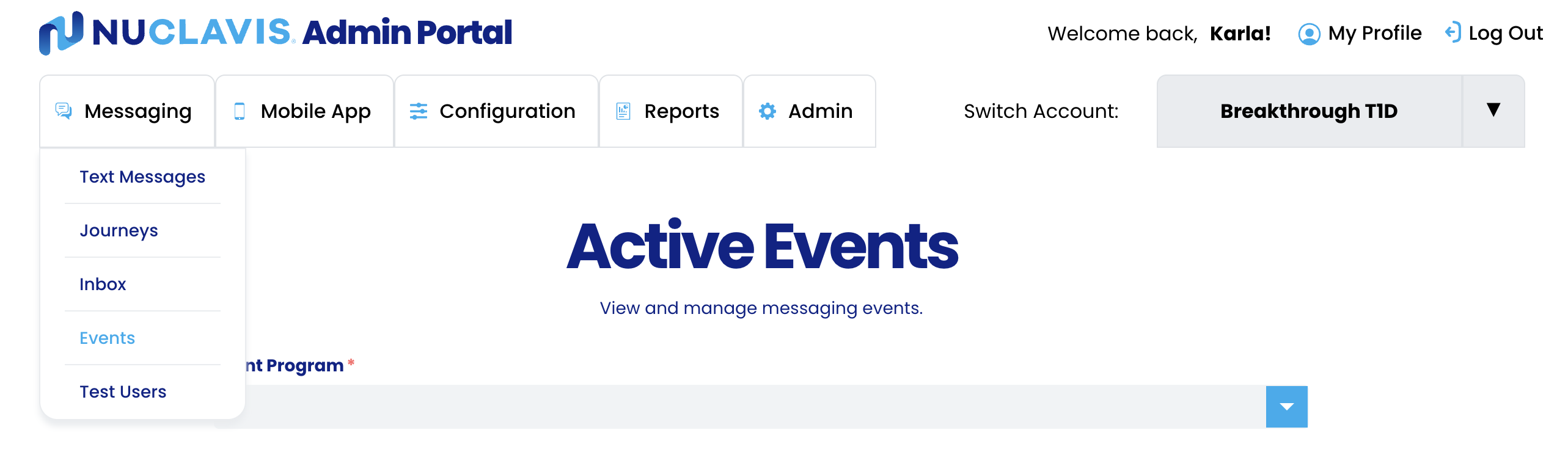
- Click on Messages
- Click on Events
- Locating the Events
In this section, you will locate and edit the event.
-
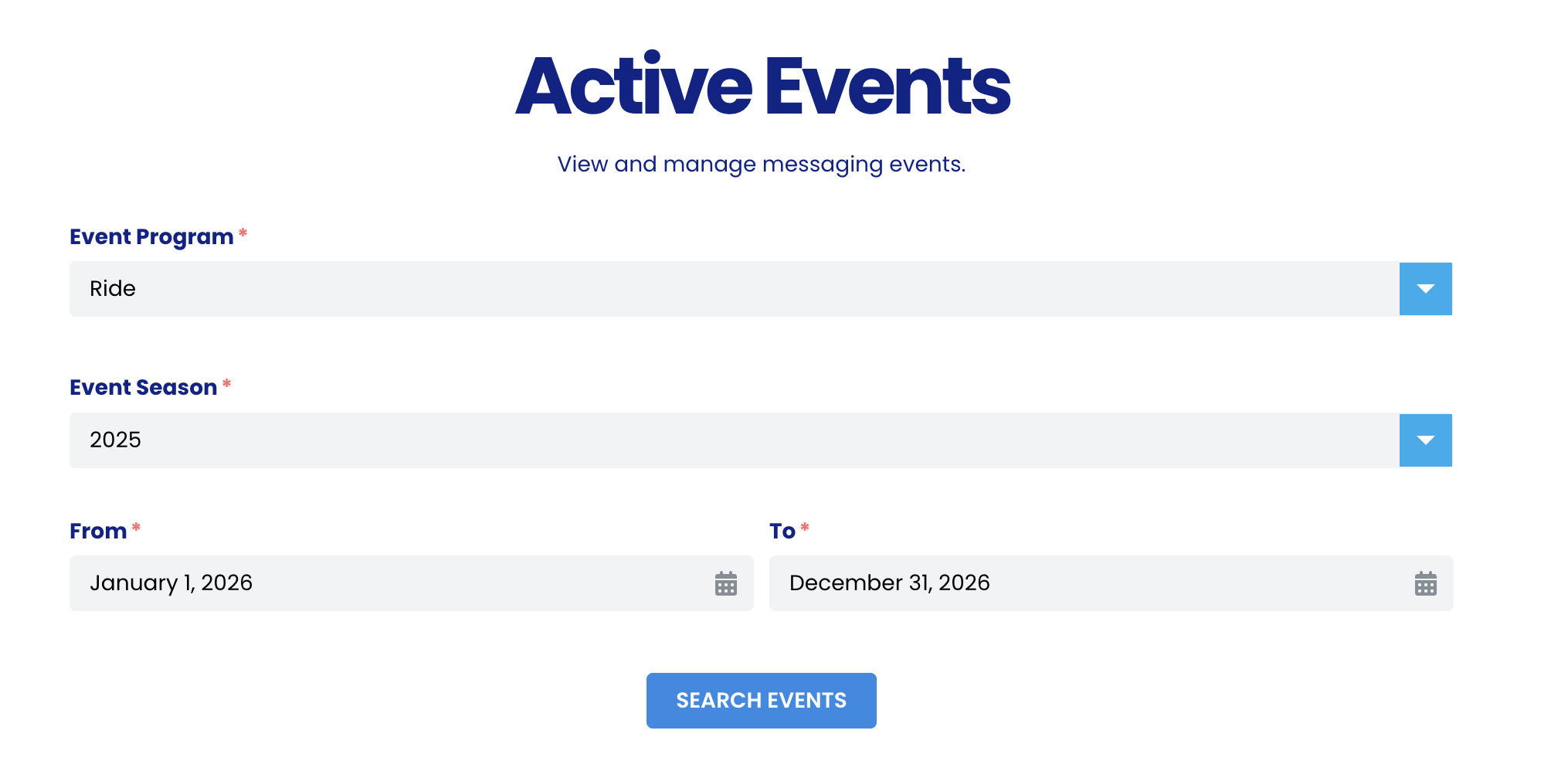
- Locate your Event Program
- Locate your Event Seasonc
- Enter a Date Range
- Click Search Events
These fields filter the events that fall under the selected event dates.
For example: Our search dates are from January 1st through December 31st.
- Editing the Event Information
In this section, you can edit the event name, or the event date. This is the information we use to trigger the Journey messages.
-
- To edit the Event Name, click on the pencil icon and type the new name, click anywhere on the page to autosave.
- To edit the Event Date, click on the pencil icon and select the new date, click anywhere on the page to autosave.



