How to set up Feature Tiles

How to Set Up a Feature Tile
Learn how to configure and add a custom Feature screen to your mobile app using the Nuclavis admin portal. This guide walks you through setting up content, scheduling, and previewing your alert to ensure your messaging reaches users effectively.
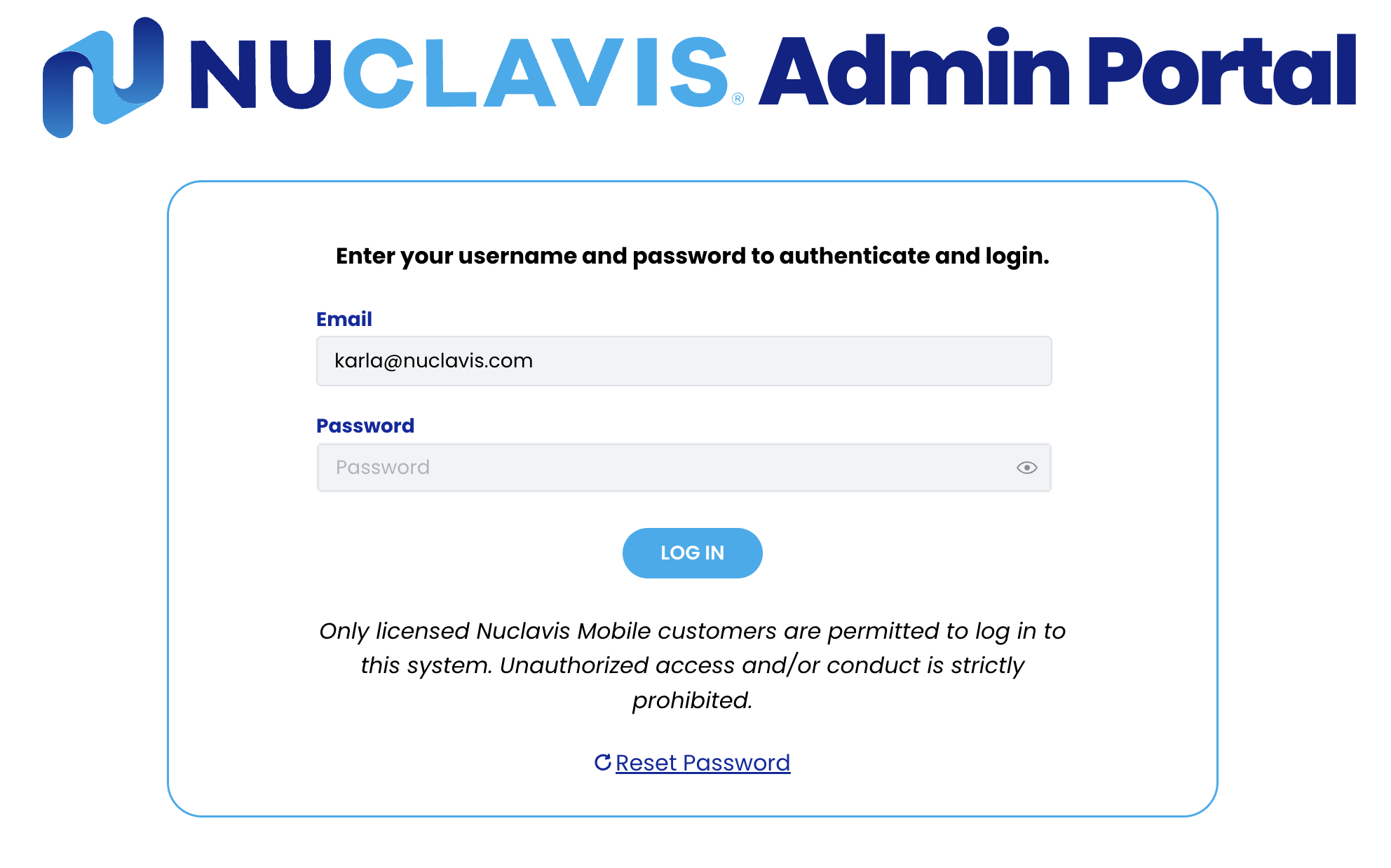
- Accessing the Admin Portal.
- Navigate to https://admin.nuclavis.com/login
- Sign in using your email address and Password.
- Click login
- Enter your Authentication Code
- This code goes to your email (check spam or junk)
- Accessing Feature Tile
- Click on Mobile App
- Click on Feature
- Click Add Feature
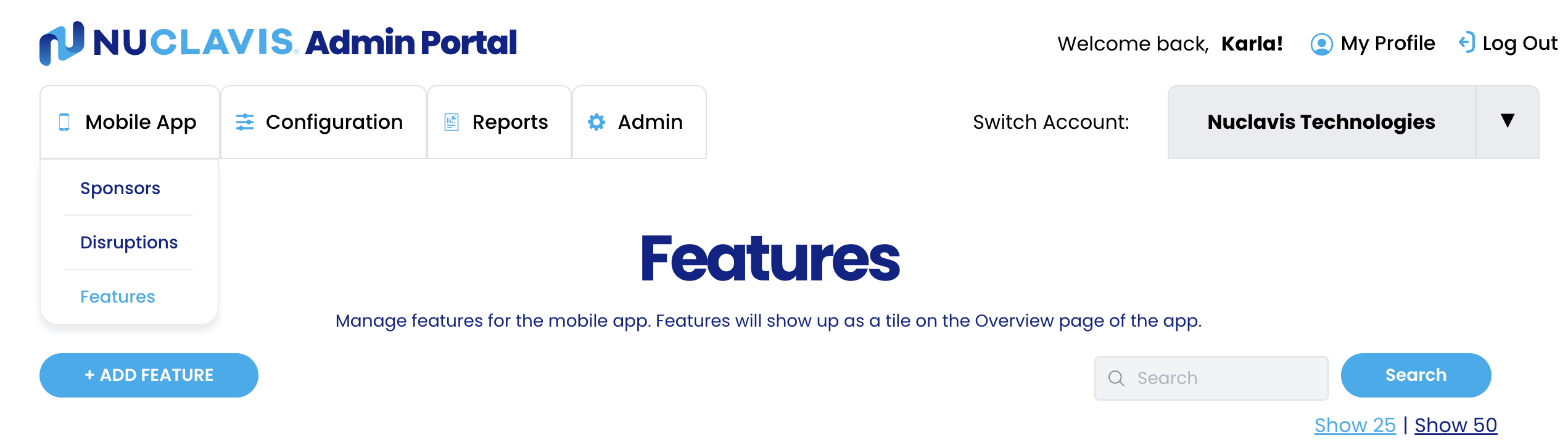
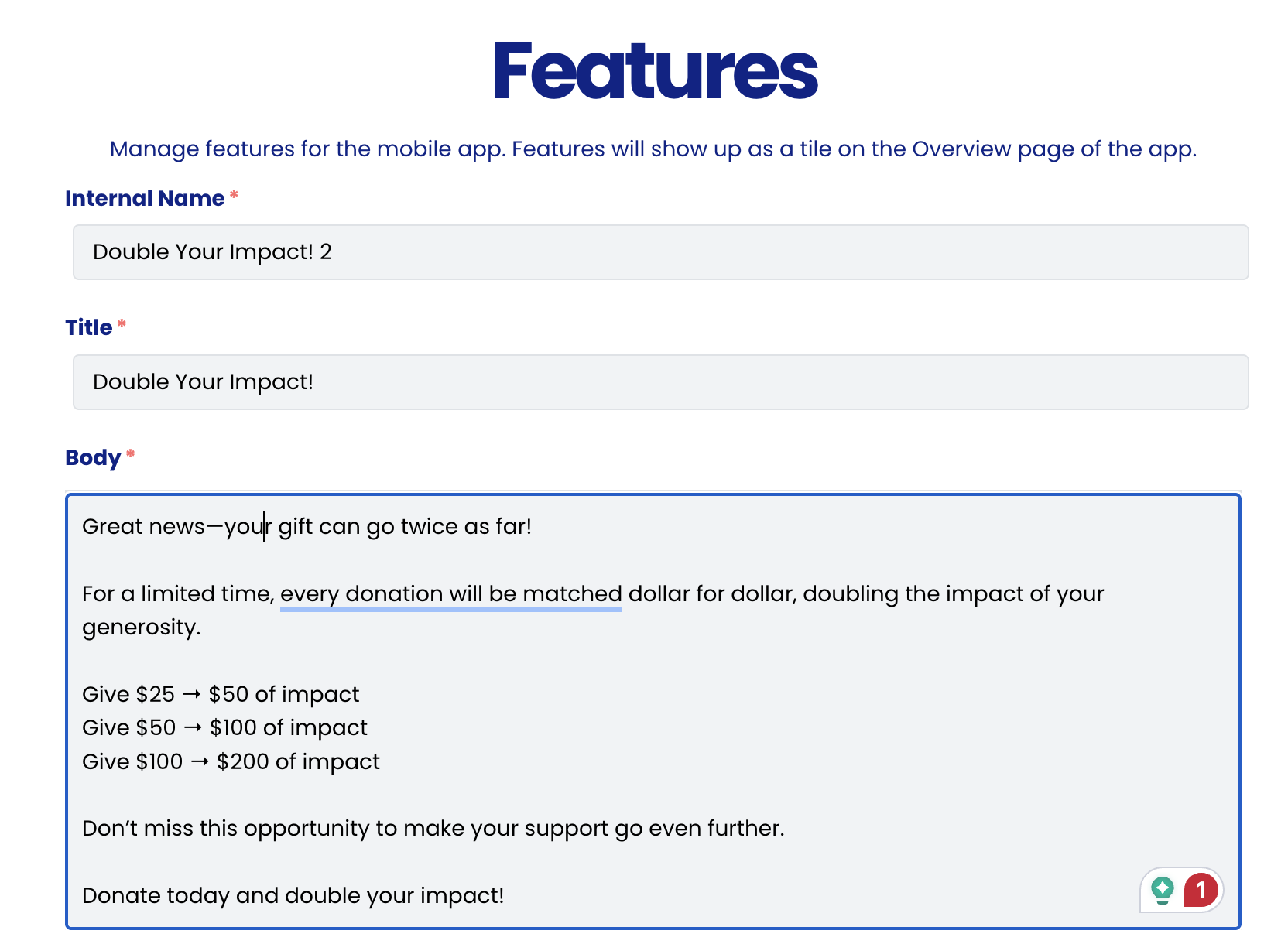
- Entering Feature Information: In this section, you will fill out all the required fields for Features.
-
- For the Internal name
- This name is only visible to the organization.
- For the Internal name
-
- For the Title
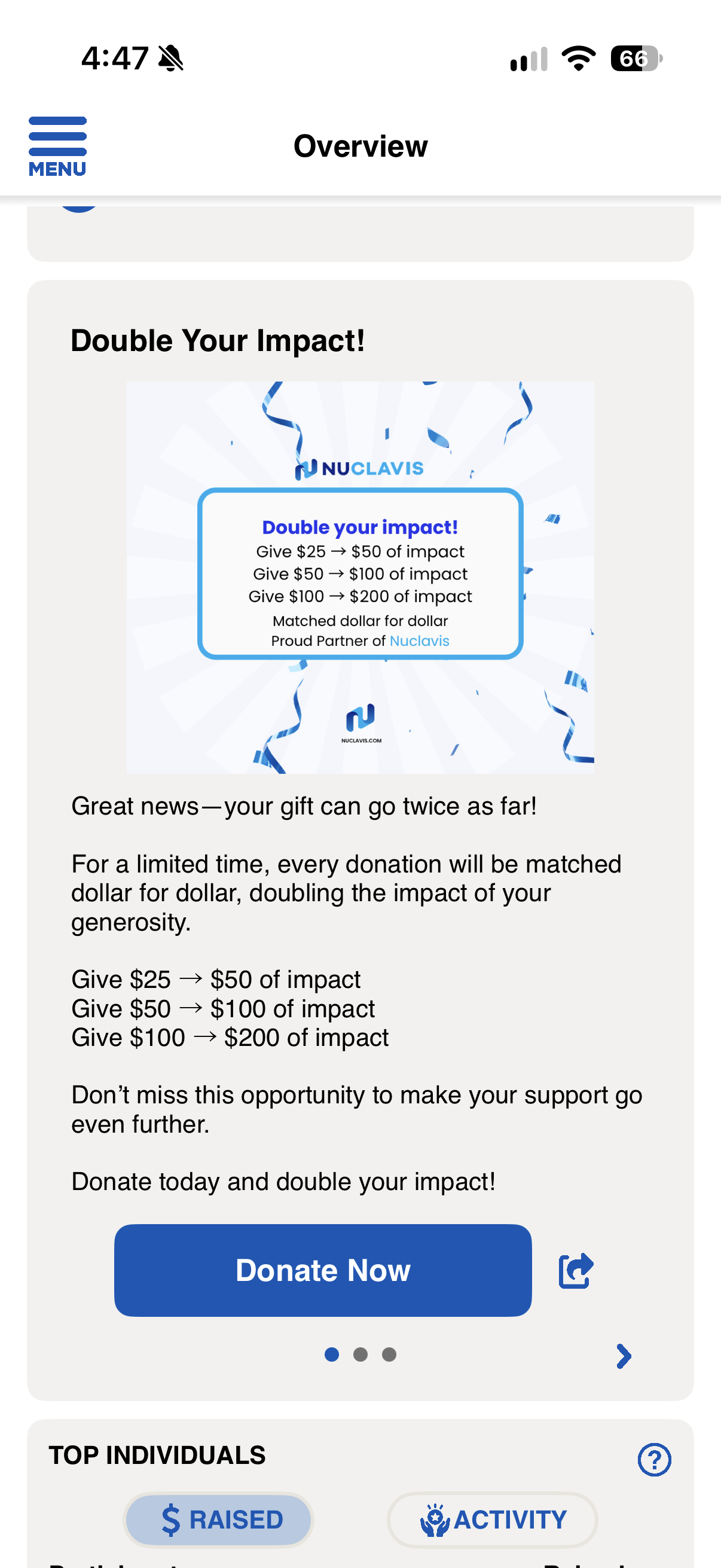
- This field is the title in the mobile app; For example, Double Your Impact!
- For the Title
-
- For the Body
- This field is where you enter the written text
- For the Body
- Entering Visibility Information
In this section, you will fill out all the required fields for Features. This controls when you want to have the Feature Tile visible on the mobile app. As well as how often.
-
- For the start date, click on the calendar icon to select the start date
- For the start time, click on the clock icon to select the start time
- Note: This time is CST
-
- For the end date, click on the calendar icon to select the end date
- For the end time, click on the clock icon to select the end time
-

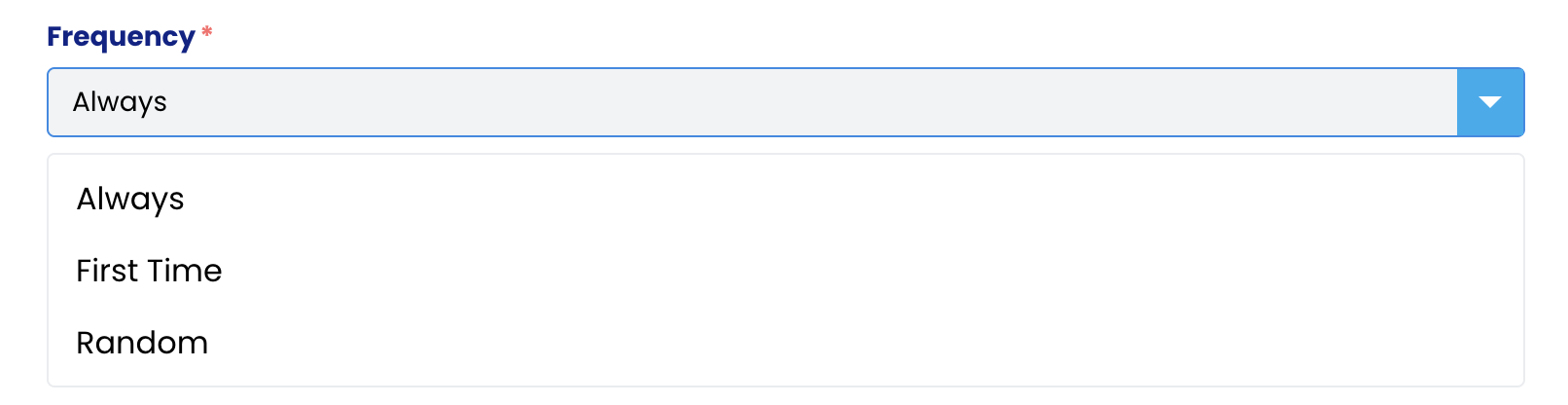
- Click on Frequency
- Always means the Feature screen will always appear on the mobile app.
- First Time means the Feature screen will only appear the first time the user signs in to the mobile app.
- Random means the Feature screen will appear randomly.
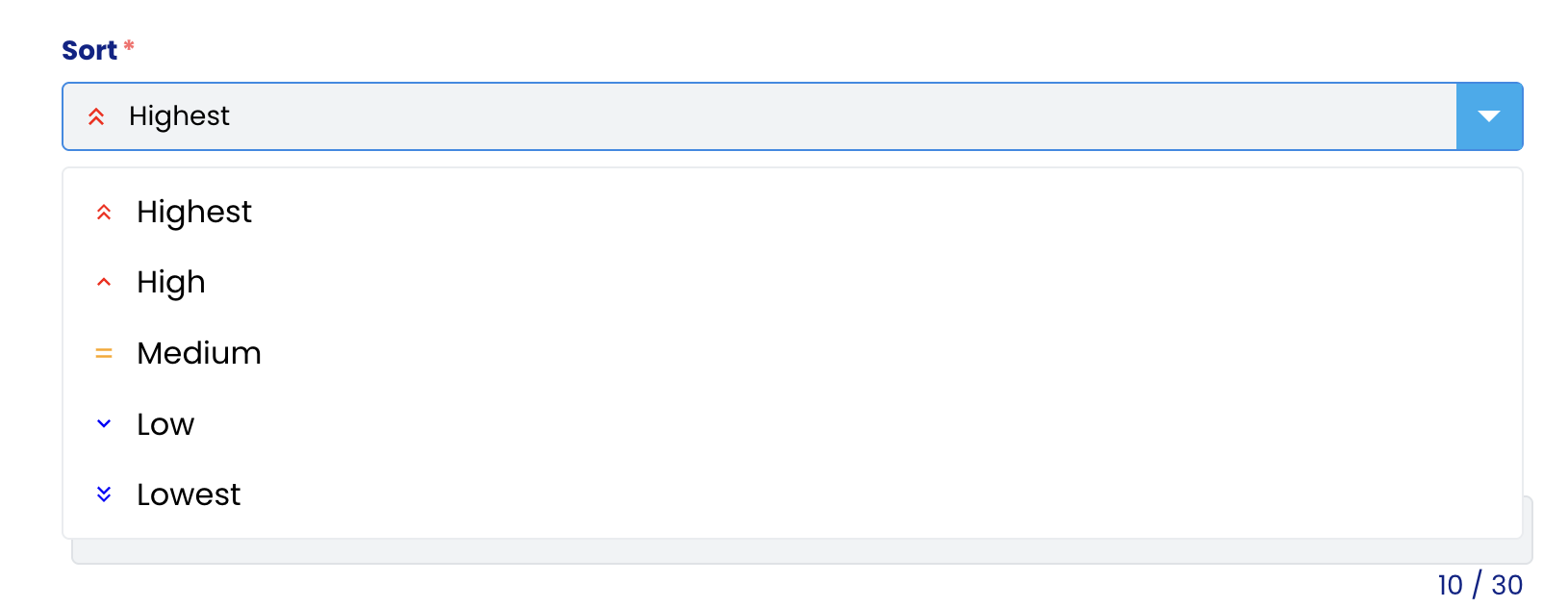
- Click on Sort
If you enable more than one Feature screen to appear concurrently on the mobile app. The sort section will determine the priority of which Feature screen appears. They will range from Highest to Lowest.
-
-
- Highest
- High
- Medium
- Low
- Lowest
-
- Entering CTA Button Information
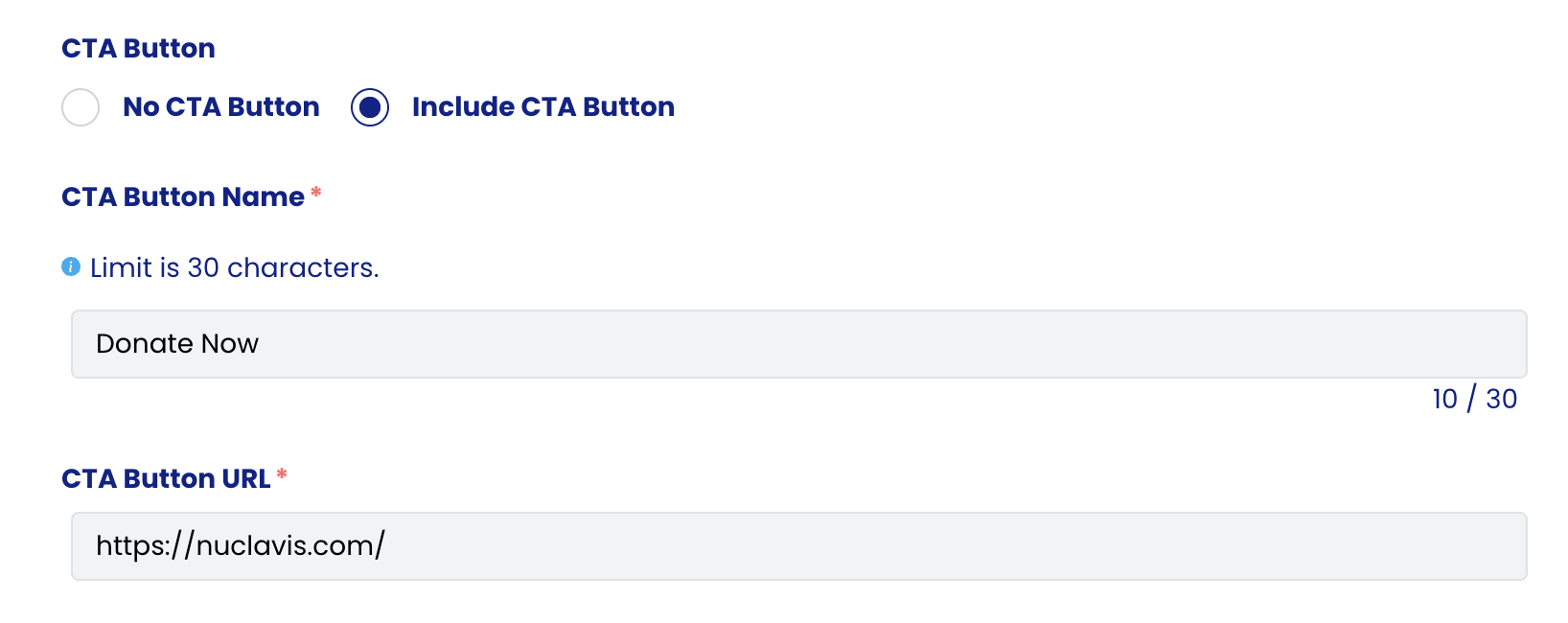
In this section, the call-to-action button is optional; however, it is highly recommended, as it can take the user to learn more information about the context of the Feature Screen.
-
- Click on the radio button to Include CTA Button if you want to set it up.
- Enter the text for the button
- Note: there is a limit of 30 characters
- For our example: Donate Now
- Click on the CTA button URL field to enter the URL
- This is where you would like the user to go.
- The CTA URL is required if you enable a CTA Button.
- The URL should start with https://
-
- Uploading images or videos
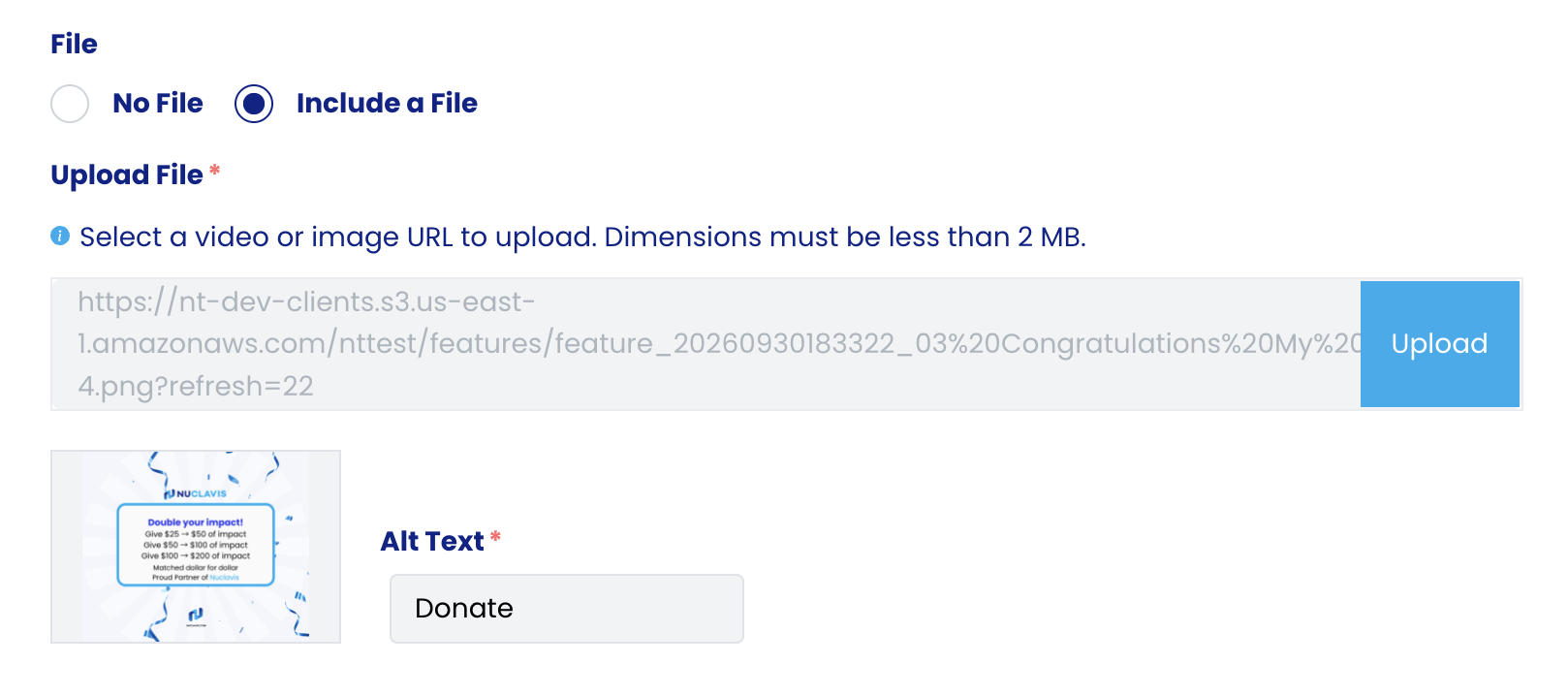
To customize your Feature Tile, add images or videos.
-
- Click the upload button to open your files.
- Select the video or image you would like to upload.
- Fill out the Alt Text section
- Note: If this is not filled out, you will not be able to save
- Alt Text (alternative text) provides a written description of an image or video for screen readers.
Additional information for images or video requirements.
- Images should be in Png’s and at least 1024x1024;
- 1800x1800 is recommended for more complex logos.
- Videos must be in MP4 Format and under 2MB.
- Selecting the Event Program and Events
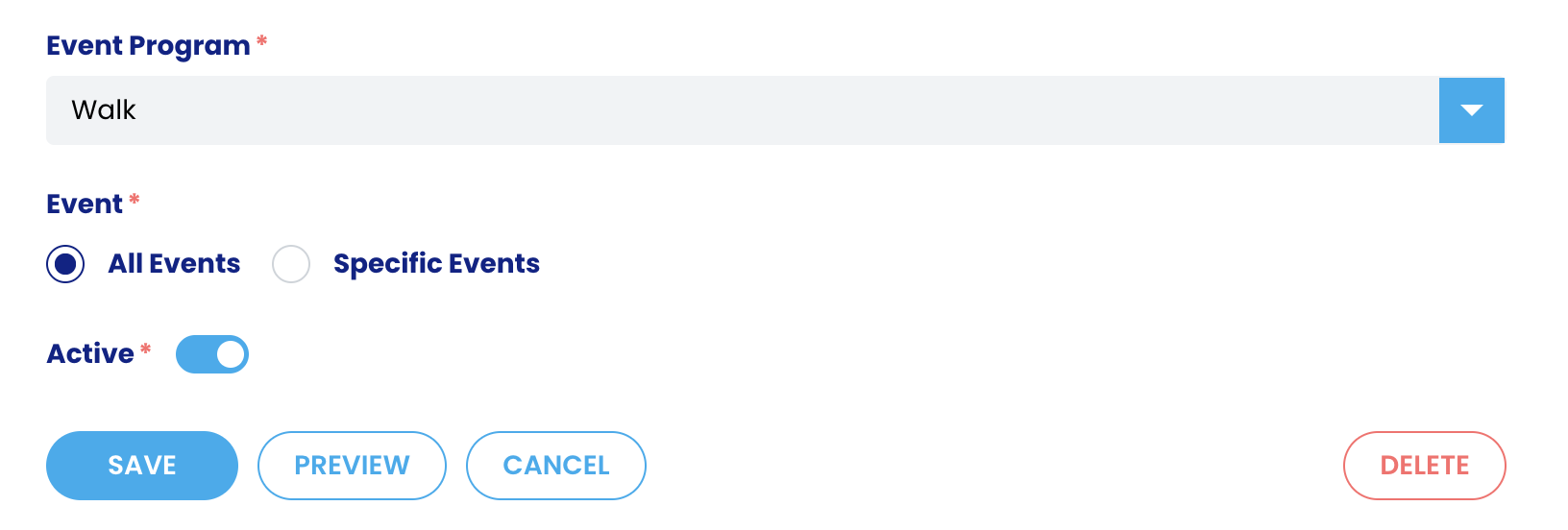
If you have the app for more than one program, use this step to decide which program and events the Feature screen should appear in.
-
- Select the event program where you want the Feature screen to appear.
- Select the radio button for either All Events or Specific Events
- For Specific Events, an event list will appear; select one or multiple events.
- Preview
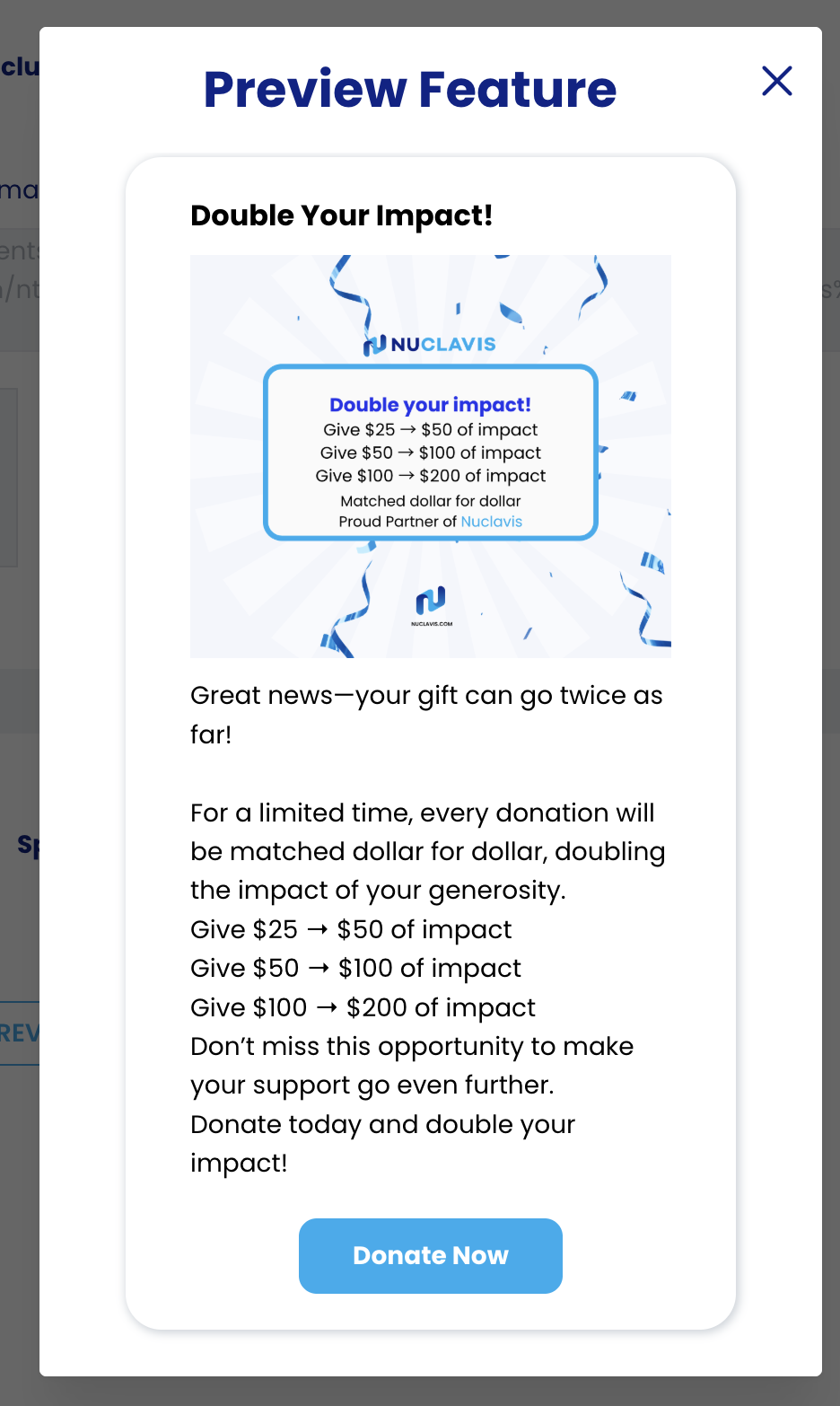
We have added an option to preview what the Feature Screen will look like before you save it.
-
- Click on the preview button.
- Click on Save button to save your Feature screen if it looks good.
- Click on the Cancel button if you don't want to save your Feature screen.
- Click on Delete if you want to delete a Feature screen.